

FAQ
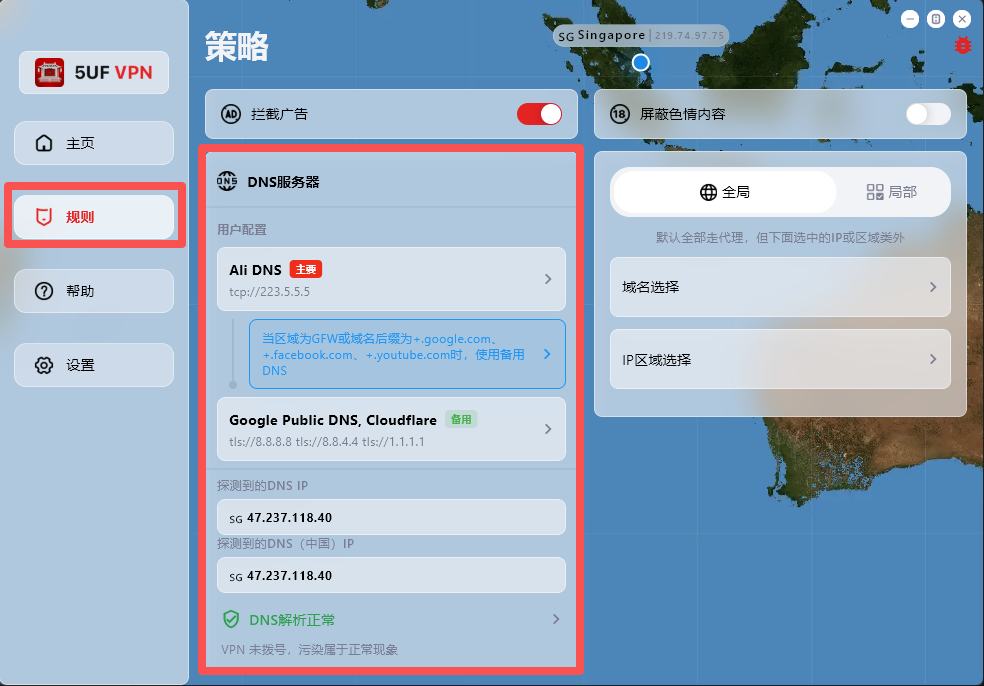
How can I change DNS to reduce DNS pollution issues? 
If your network access behaves abnormally, first check and adjust DNS settings in the Rules page.
The app has built-in support for:
1. Changing DNS settings after dial-up/connection.
2. DNS connectivity checks.
3. DNS pollution detection.
Where to configure: open the app main screen, go to Rules, then modify the default DNS request settings.
One-tap preset recovery: at the bottom of the Rules page, we provide built-in presets for common regions, including Mainland China, Hong Kong/Macau, and default profiles for countries/regions such as Iran and Russia.
Dynamic IP database update: the Rules page also includes dynamic IP database update, which you can run when needed.
Why detected DNS may differ from configured DNS:
DNS probing uses temporary domain resolution to identify the actual egress resolver IP within a DNS cluster, so the detected result may not be exactly the DNS address you entered.
For example, even if you configure Google Public DNS (8.8.8.8), the detected resolver may be another cluster node responding to your request.
What is the difference between relay nodes and direct nodes?
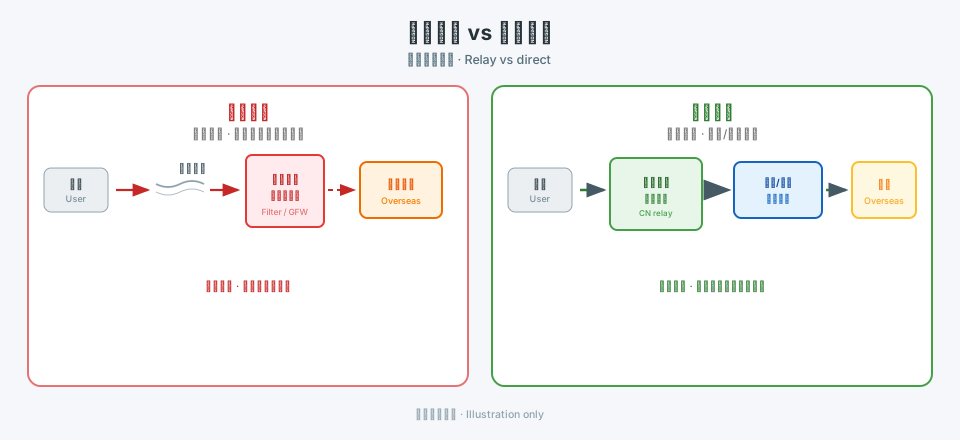
Relay (transit) nodes send traffic to a relay inside mainland China first, then forward it toward overseas destinations over dedicated or optimized backhaul. That path is often more predictable than raw public-internet crossings, which can mean better stability and higher peak performance for cross-border use. Building and operating relays costs more, so relay plans may differ from plain direct routes in pricing or lineup.
Direct nodes rely more on the public internet, connecting straight to overseas servers. Cross-border public paths may see packet loss, throttling, or intermittent blocking in some regions or hours. Even when a route works, speeds can plunge at busy times. If you are in mainland China and need reliability, relay lines are usually the safer choice.
5UF is among the few providers that can offer lawful mainland relay capacity alongside standard options. We also tune routing for selected sites and services. Example: some Hong Kong nodes may not work well with OpenAI ChatGPT over a plain path, but with relay and routing optimization, Hong Kong and similar regions can reach those AI services more reliably. If a specific AI site or service fails for you, contact support so we can prioritize routing fixes.
Available nodes depend on the app and the list on our site; plans differ in node types and counts. See your subscription details for what applies to you.
How to quickly select a server and run speed tests in the 5UF VPN app
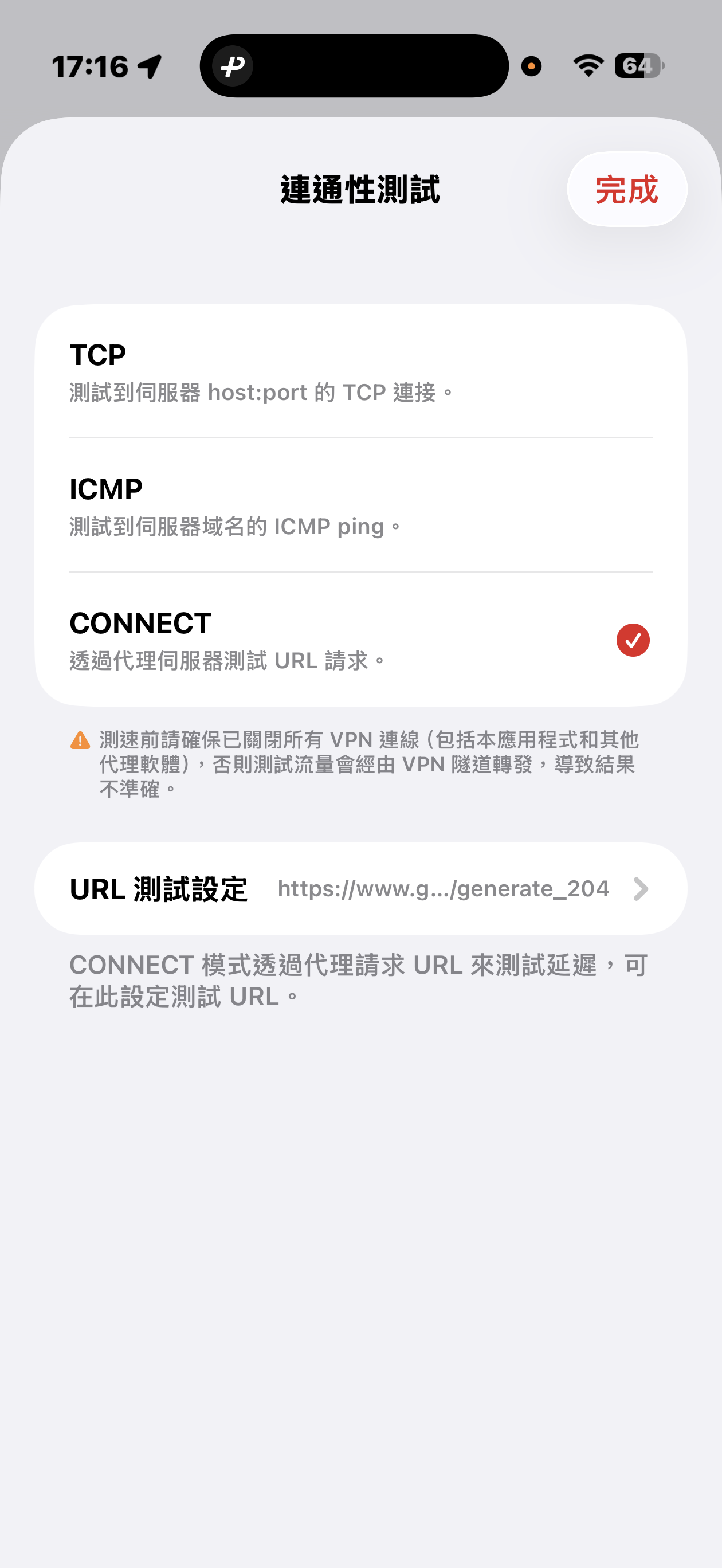
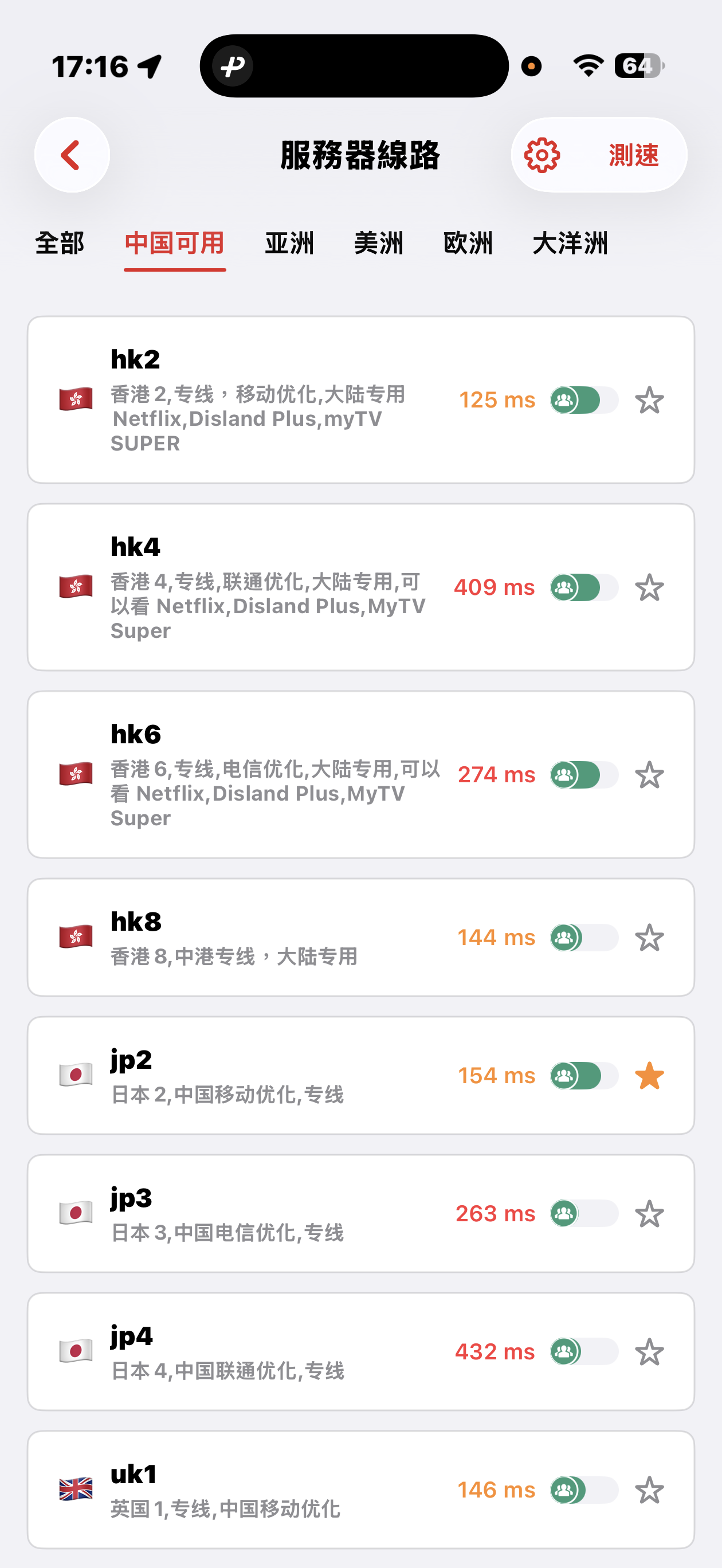
The 5UF VPN app offers quick connectivity tests from the server list screen: tap Speed test at the top right (sometimes next to a settings icon), open Connectivity test, then pick a method.
Three test modes
- TCP: Measures how long it takes to complete a TCP handshake to each server host and port. The app runs multiple probes and shows an average so you can compare routes quickly.
- ICMP: Sends ICMP echo (ping) to the server hostname, similar to the ping tools built into desktop and mobile systems, to see round-trip latency.
- CONNECT: Issues an HTTP(S) request to a test URL through the proxy path, which best mimics real VPN usage. It is usually the slowest mode, but in heavily restricted networks it helps find nodes that still work. You can change the test URL under URL test settings.
Before testing, disconnect all VPN and proxy software, including this app. Otherwise traffic may still go through a tunnel and the numbers will not reflect your raw local path.
Mainland China: Strict blocking may make some overseas nodes unreachable; that can be normal. Use the Available in China category for optimized dedicated lines that aim to stay usable under heavy filtering, with carrier hints for China Mobile, China Unicom, and China Telecom. Pick a line that matches your ISP or SIM.
Choosing a server: Auto-select uses TCP results, then picks one server at random from among the fastest, balancing speed and load. You can also browse by geography (for example Asia, Americas, Europe) and choose manually.
TikTok not working? Quick 5UF VPN setup guide
If TikTok still shows a black screen, fails to load, or redirects to Douyin even after you connect to a VPN, the problem is usually not just the IP address. TikTok also checks your current phone and network environment.
We recommend using the latest 5UF VPN app.
Quick setup:
- Fully close TikTok first.
- Turn on Airplane Mode and wait a few seconds.
- While Airplane Mode is on, manually turn Wi-Fi back on.
- Open the 5UF VPN app and connect to an available server.
- After the VPN is connected, open TikTok.
- Once TikTok loads normally, you can usually turn off Airplane Mode and return to normal mode.
Recommendations:
- Try to avoid Hong Kong servers, as they may affect TikTok region detection.
- For the same TikTok account, try to keep using the same server to avoid cross-region recommendations.
- If one server does not work well, switch to another server in the same region instead of changing countries too often.
If it still does not work:
- Switch between Wi-Fi and mobile data, then try again.
- Change to another non-Hong Kong server.
- Fully close TikTok and reopen it.
For long-term stable TikTok use, keep using the latest 5UF VPN app and try to maintain a stable server and network environment.
5UF VPN Push Notification Test – FAQ (English Version)
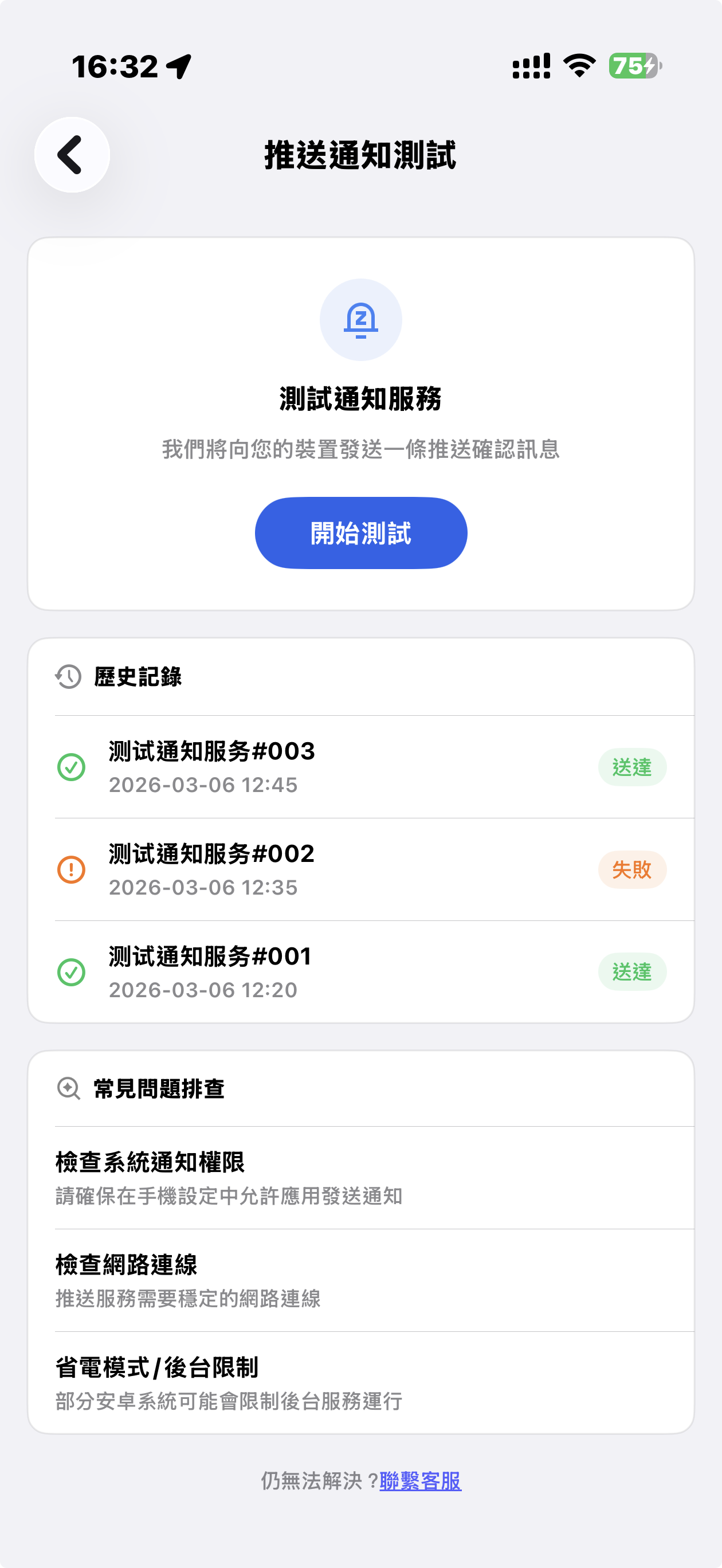
1. What is the Push Notification Test?
To ensure you receive customer support replies, account alerts, and important service updates, 5UF VPN now includes a Push Notification Test feature.
Tap “Start Test,” and a test notification will be sent to your device. The result will show:
-
✅ Delivered
-
❌ Failed
This helps you verify whether push notifications are working properly.
2. Why do VPN apps face more push issues?
VPN apps are more likely to encounter push delivery issues due to:
-
Android devices in China not supporting Google FCM
-
Manufacturer ROM restrictions (MIUI, EMUI, ColorOS, etc.)
-
Aggressive battery optimization
-
Network policy conflicts
Regular testing is recommended.
3. Special Notice for Android Devices in Mainland China (Important)
Android devices sold in Mainland China:
-
❌ Often do not support Google FCM
-
❌ May restrict overseas push channels
-
❌ Frequently disable background connections
You may need to:
1️⃣ Enable Auto Start
Settings → App Management → 5UF VPN → Allow Auto Start
2️⃣ Disable Battery Optimization
Settings → Battery → App Power Management → No Restrictions
3️⃣ Allow Background Activity
Make sure the app is not restricted or “deep sleeping.”
Brand-specific paths:
-
Huawei: Battery → App Launch Management
-
Xiaomi: App Management → Battery Saver
-
OPPO / vivo: Background Freeze Management
4. What if the test shows “Failed”?
Please check:
-
Notification permissions are enabled
-
Network connection is stable
-
Restart the device
Some Android systems temporarily suspend push channels.
5. Delivered but no popup?
Possible reasons:
-
You were using the app
-
Notification was delivered silently
-
Marked as low priority
Check your notification history.
6. Does VPN status affect push delivery?
Generally no.
However, delays may occur when:
-
Switching VPN nodes
-
Experiencing unstable network
-
Device enters deep power-saving mode
7. When should I test?
Recommended after:
-
Changing devices
-
Updating system
-
Updating 5UF VPN
-
Suspecting missed notifications
8. Why are push notifications important?
Push notifications ensure you receive:
-
🔔 Customer support replies
-
🔔 Account alerts
-
🔔 Service maintenance notices
-
🔔 Security updates
This is especially important for VPN users.
9. Still not working?
Please contact support in the app and provide:
-
Device brand & model
-
OS version
-
Screenshot of test result
We’ll assist you further.
How to Create an Overseas Apple ID (Hong Kong) from Mainland China
Need access to apps that aren't available in the Mainland China App Store? Here's a simple step-by-step guide to help you create a Hong Kong Apple ID right from your iPhone — no VPN needed.
Step 1: Go to Apple ID Website
-
Open Safari (or any browser) and go to https://account.apple.com/account#
-
Click “Create Your Apple ID” in the top-right corner.
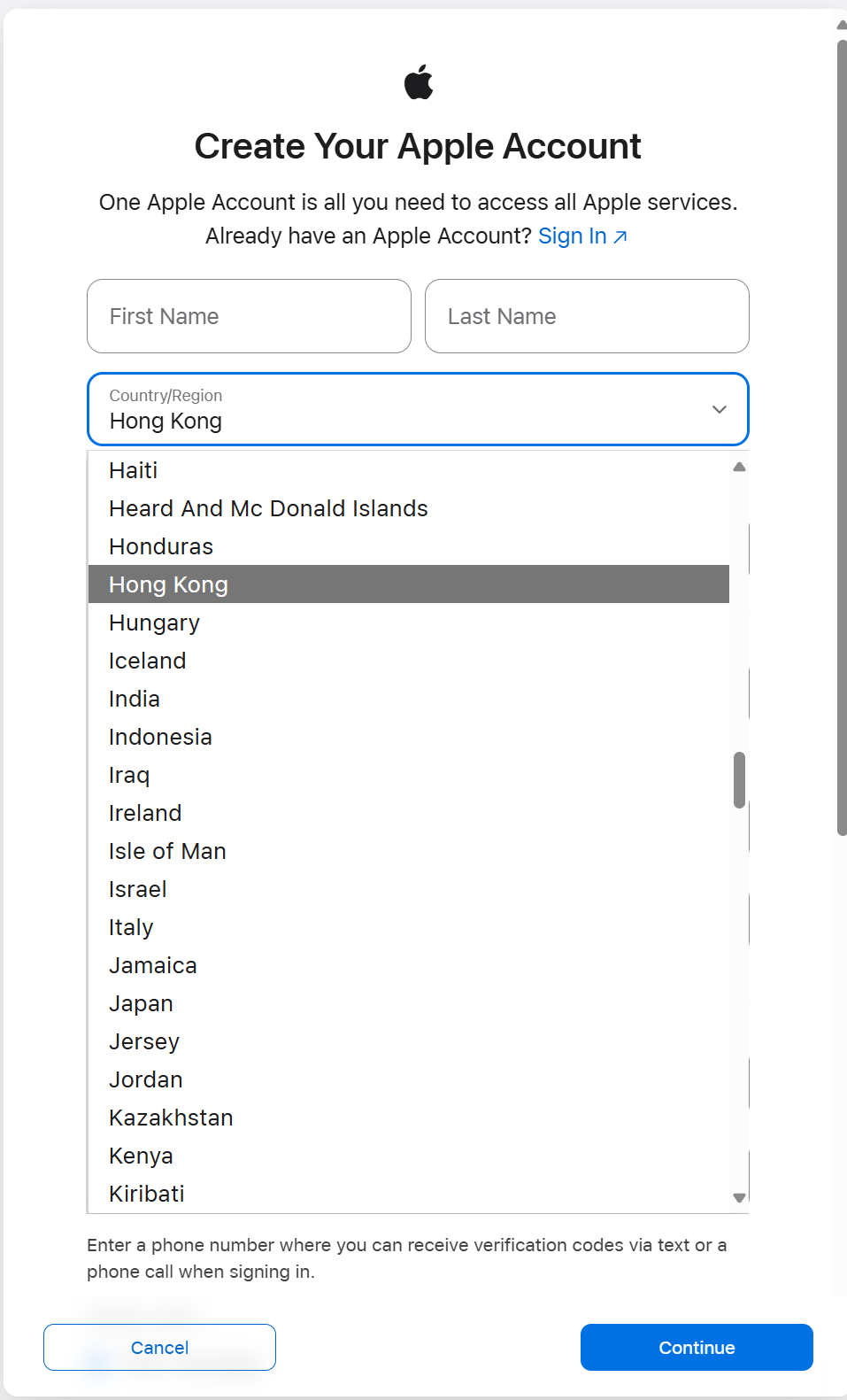
Step 2: Enter Your Details
-
Fill in your first name, last name, and date of birth.
-
Enter a new email address (one that hasn’t been used with Apple before).
-
Choose a strong password.
-
Set your country or region to Hong Kong.
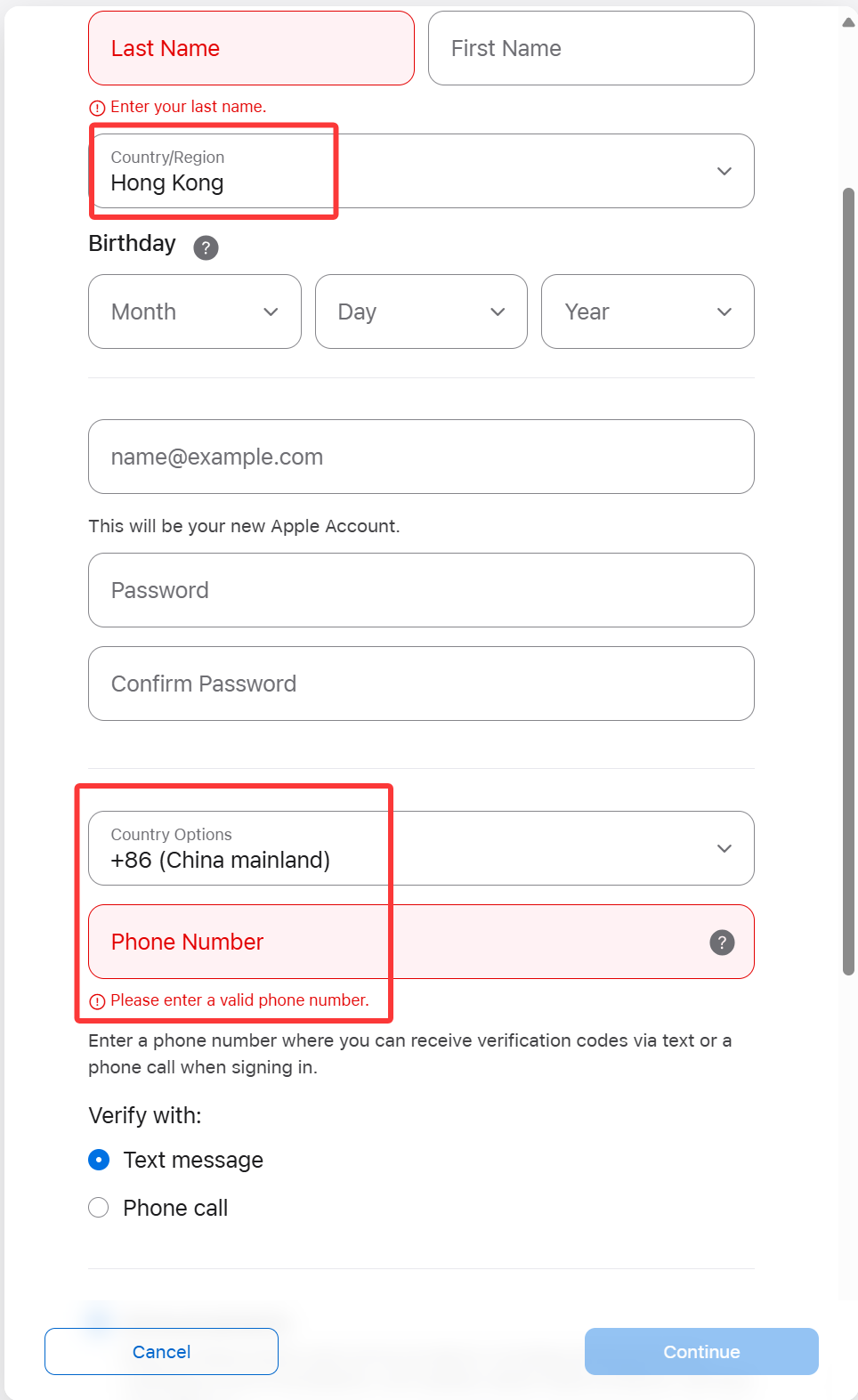
Step 3: Add Your Phone Number
-
Use your Mainland China mobile number — it’s fine!
-
This number will receive a verification code, so keep it nearby.
✅ Apple allows you to verify an overseas Apple ID using a Chinese phone number.
Step 4: Set the Billing Address
-
For the billing address, you can use any valid Hong Kong format.
-
Feel free to randomly fill in the address fields — just make sure it's realistic:
-
Example:
-
Street: 88 Queensway
-
District: Central
-
City: Hong Kong
-
Postal Code: 000000
-
Phone: +852 6123 4567
-
-
-
For payment method, choose None if it’s available.
User feedback
Some users report that None only shows when their traffic exits via a Hong Kong IP (for example, after connecting through a Hong Kong VPN node). If you still can’t set None on a phone, try a desktop browser on a network with a suitable exit (e.g. Hong Kong) and complete your Hong Kong Apple ID at account.apple.com, then sign in on the iPhone.
Tip: You can also use a Hong Kong hotel or store address for convenience.
✅ Step 5: Verify and Complete
-
Enter the verification code sent to your phone number.
-
Apple will also send a confirmation email — open it and click the link to verify.
-
Once verified, you can sign in with your new Hong Kong Apple ID.
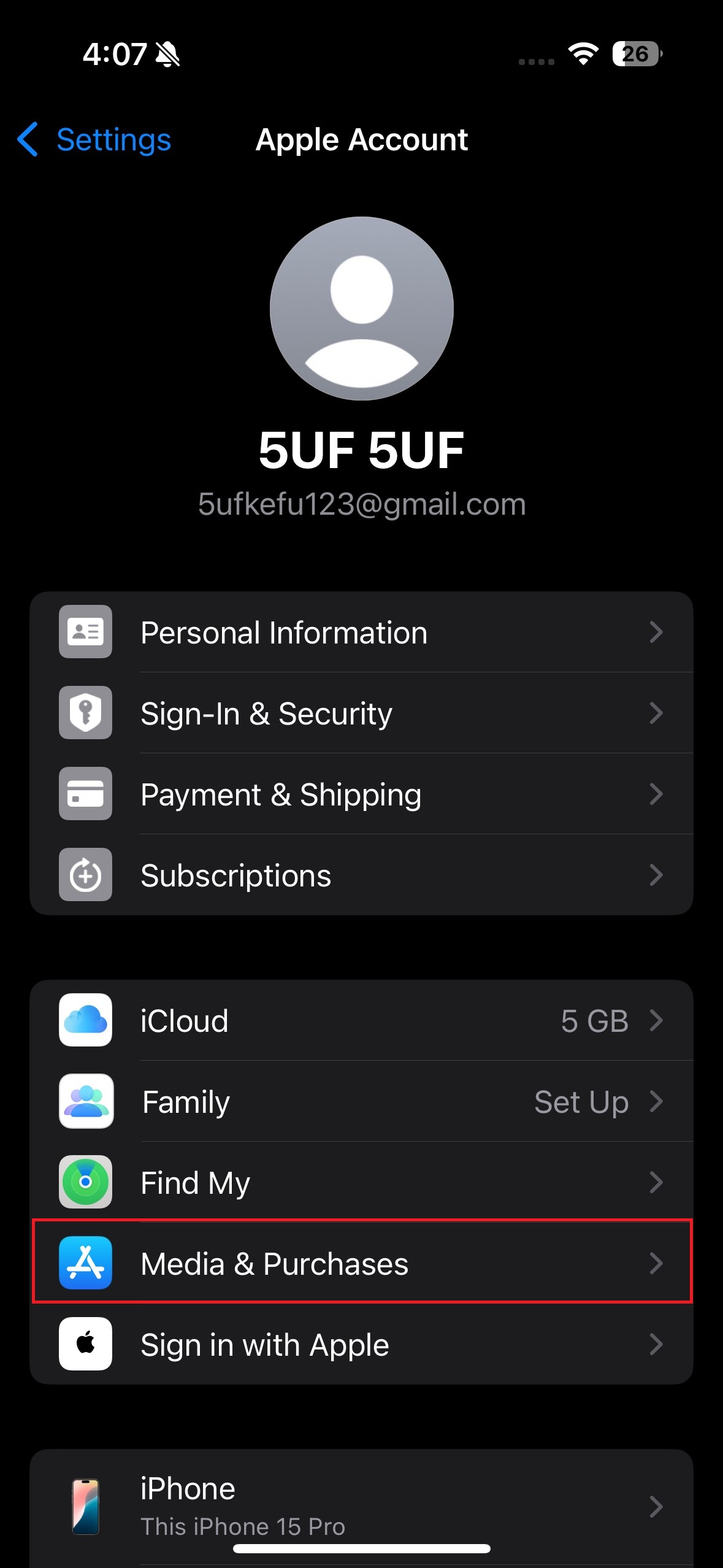
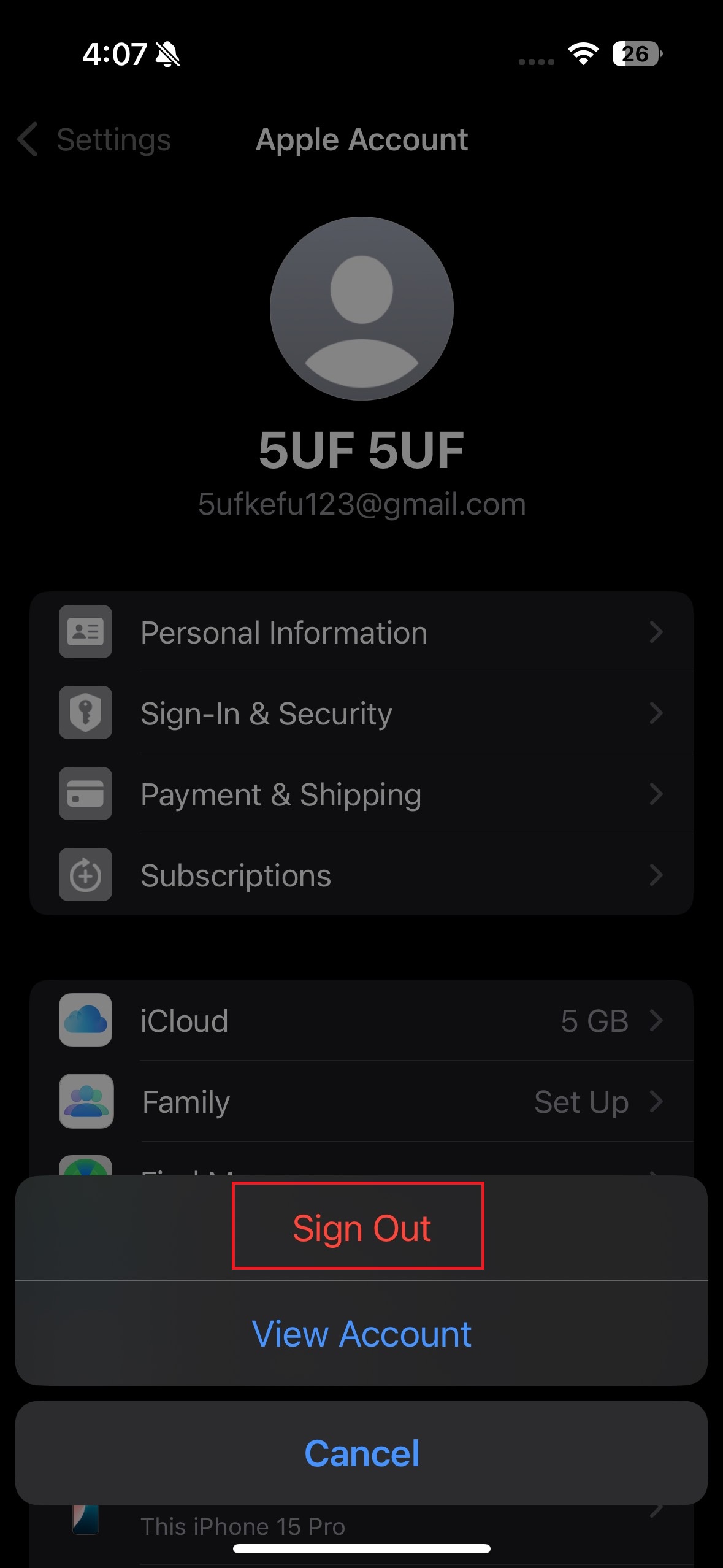
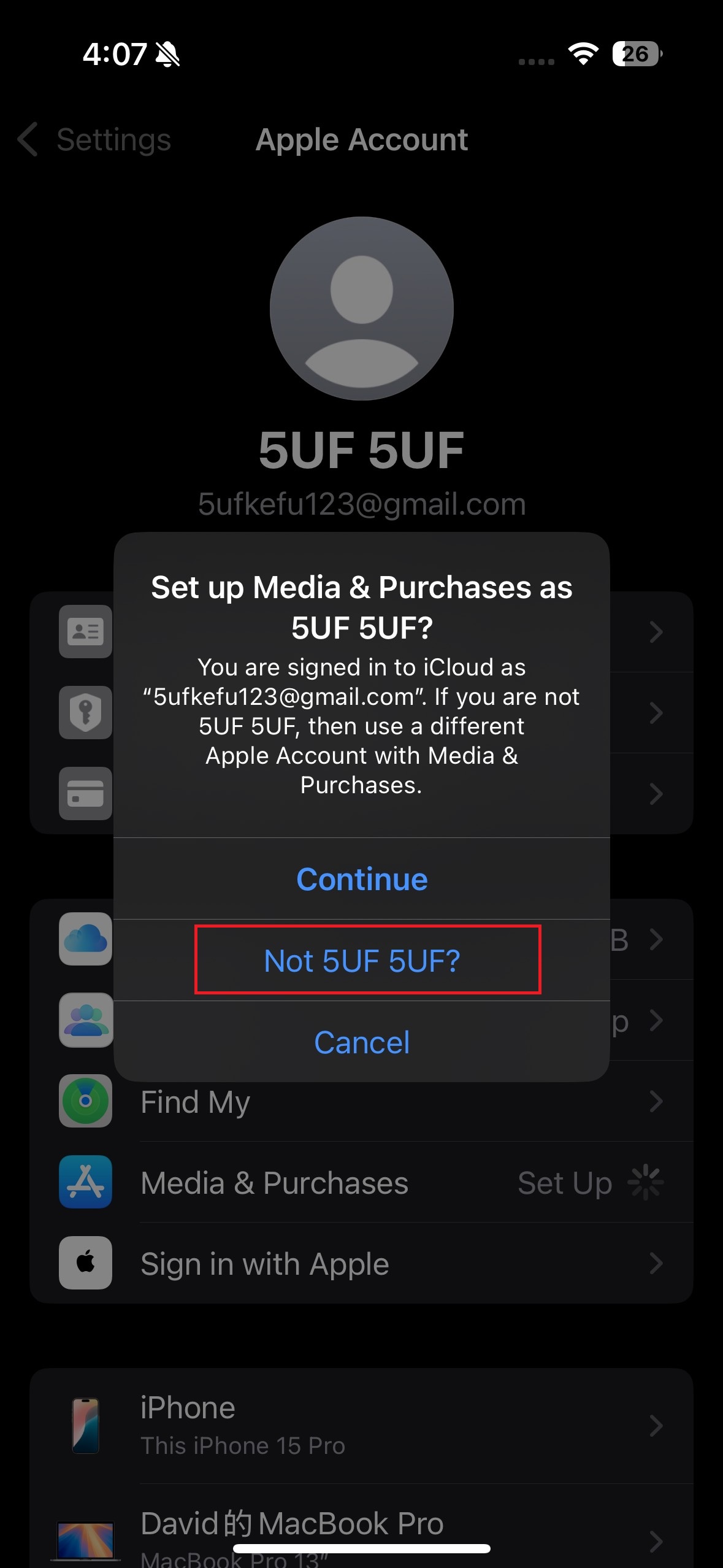
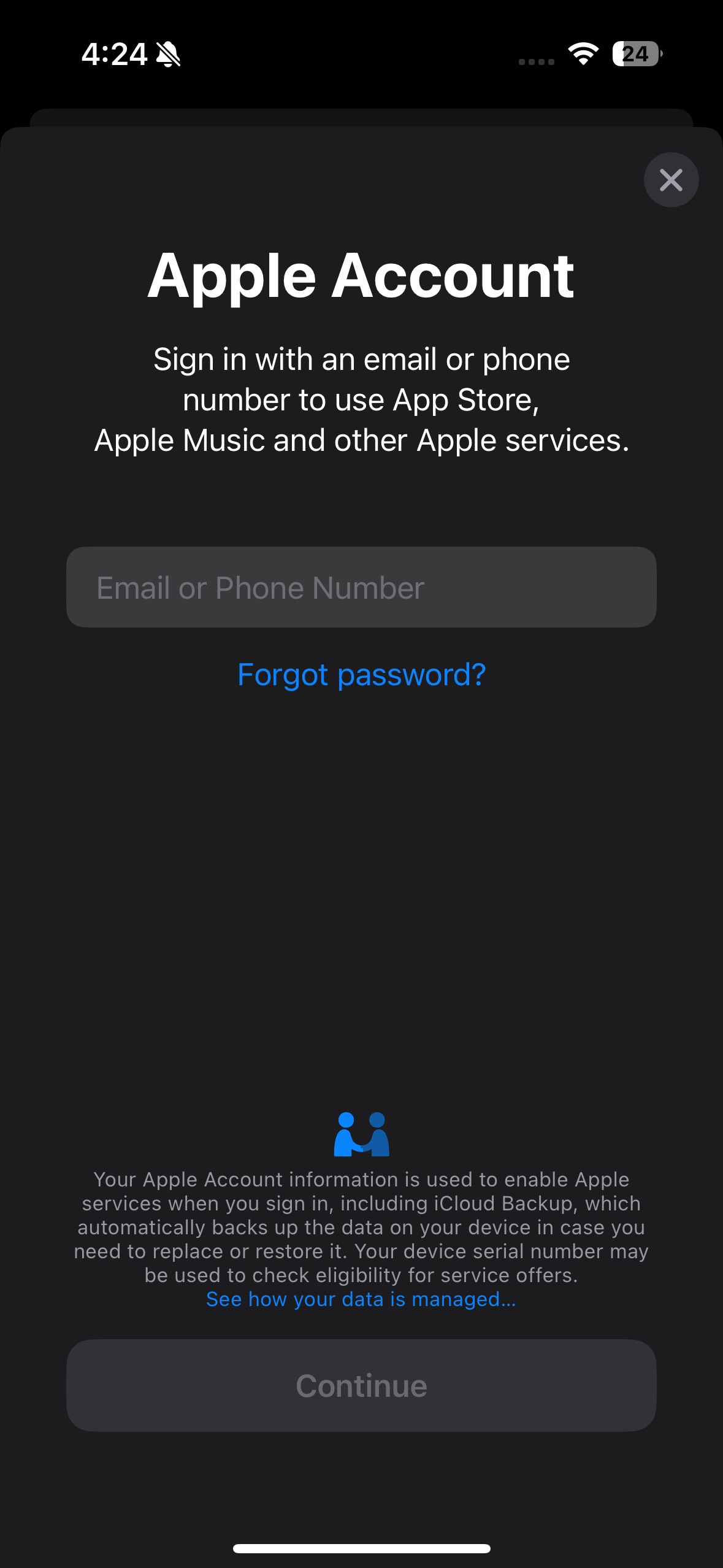
After signing out, return to the “Media & Purchases” section and sign in using the Apple ID you just created.
This will link your new account to the App Store and allow you to download apps from the selected region.
⚠️ A Few Notes:
-
Avoid switching Apple ID regions too often — it may affect app updates and subscriptions.
-
Don't use iCloud syncing with multiple Apple IDs on the same device.
-
If “None” isn’t showing, check that you’re on a Hong Kong (or similar) exit IP first (e.g. connect via a Hong Kong VPN). Prefer a desktop browser to create the account on account.apple.com, then sign in on your iPhone.
Frequently Asked Questions
No, logging out only affects store-related services. Your personal data and iCloud services remain safe as long as you're still signed in to iCloud.
Photos
Contacts
Messages (iMessage)
FaceTime
iCloud Drive
Find My iPhone
App Store & iTunes Store access
Apple Music, if subscribed under that Apple ID
Apple TV+, Apple Arcade, and other subscriptions tied to that ID
Note: When updating installed apps, iOS uses the Apple ID that originally downloaded (or acquired) each app, including free titles, which still count as a purchase record. This is separate from which Apple ID is currently signed in under Media & Purchases for new App Store activity, so updates are generally unaffected.
✅ Apple TV+ and full TV app content
✅ Restricted apps (YouTube, Telegram, WhatsApp, etc.)
✅ Apple Arcade, Apple News, full Apple Music catalog
✅ More payment options (PayPal, HK gift cards)
✅ App Store in English & Traditional Chinese
1. Will logging out of my Apple ID under Media & Purchases affect my device?
✅ Not Affected (if still signed into iCloud):
❌ Affected:
Switching from a Mainland China to Hong Kong Apple ID (Media & Purchases only) unlocks:
2. If my phone number has already been linked to another Apple account, can I still use the same phone number to create another account?
Answer: Yes, you can still use the same phone number to create or verify another Apple ID. However, the number can only be associated with iMessage and FaceTime for one Apple ID at a time. You may receive a prompt to verify which Apple ID you want the number to be used with for messaging and FaceTime.
When creating a new Apple ID, keep in mind that you must use an email address that has not been previously linked to any Apple ID. Each Apple ID requires a unique email, and the same email cannot be used to create multiple accounts.
3. What to do when you want to download apps that are only available in mainland China?
Answer: You can simply choose to sign out from the Media & Purchases account and log back into it using your mainland China Apple ID. Since both accounts are yours to manage, you can switch between them as needed to access region-specific apps.