


FAQ
Using Sing-box VT on Mac with 5UF VPN 
To use a third-party client on macOS, install Sing-box VT from the Mac App Store (third-party software, not published by 5UF). 5UF serves a Trojan (Xray) compatible profile as a sing-box subscription that includes server lists and routing rules.
1. Install the app
You need a non-Mainland-China Apple ID. Install from the App Store: Sing-box VT
2. Copy your sing-box URL
Sign in to the 5UF user panel in a browser and open the Xray (Trojan) configuration page (typically /xray_config). Copy the full sing-box configuration subscription URL with the one-click copy button.
That URL embeds your private UUID—do not share it. If it may have leaked, use Change UUID on the same page so the old URLs stop working immediately, then copy the new sing-box link and import again.
3. Import into Sing-box VT
In the app, add or update a profile by importing from URL / subscription (wording depends on the app version), paste the copied link, save, and let the app refresh nodes and rule sets.
4. Connect and test
Enable the profile and visit any site that shows your public IP to confirm traffic exits through the VPN. If import or connection fails, check that the URL was copied completely, your account is active, and the network is not blocking the endpoints; generating a new UUID and re-importing often resolves stale links.
Screenshots (UI may change between releases):

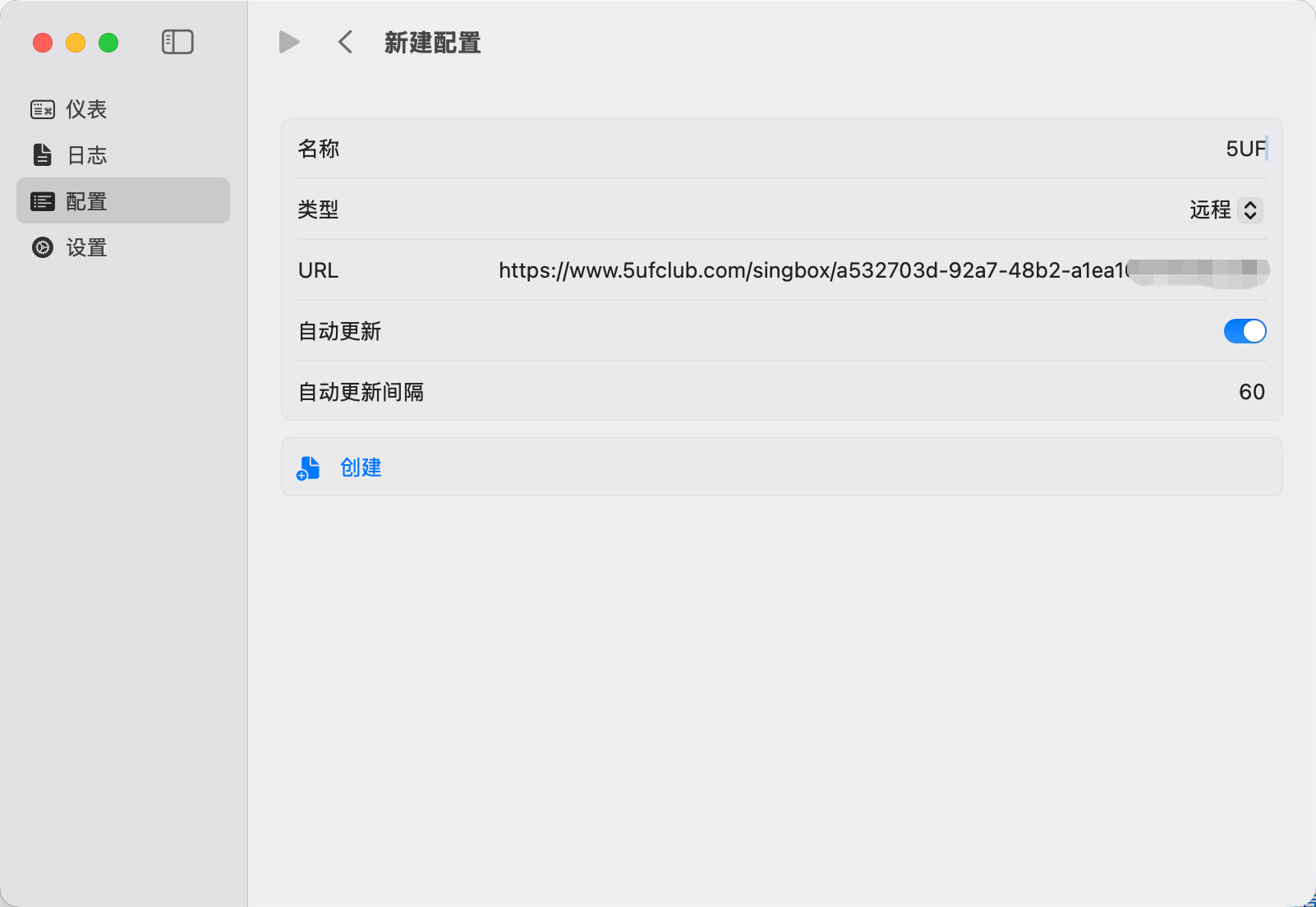
For the official all-in-one experience, use the 5UF VPN Mac app from our site. This article targets users who prefer the sing-box ecosystem.
How to open 5UF VPN automatically at login (macOS)
Mac Setup Instructions
Method 1: Using the Dock
-
Launch 5UF VPN.
-
In the Dock, right-click (or Control-click) the 5UF VPN icon.
-
Hover over Options and select Open at Login.
Launch 5UF VPN.
In the Dock, right-click (or Control-click) the 5UF VPN icon.
Hover over Options and select Open at Login.
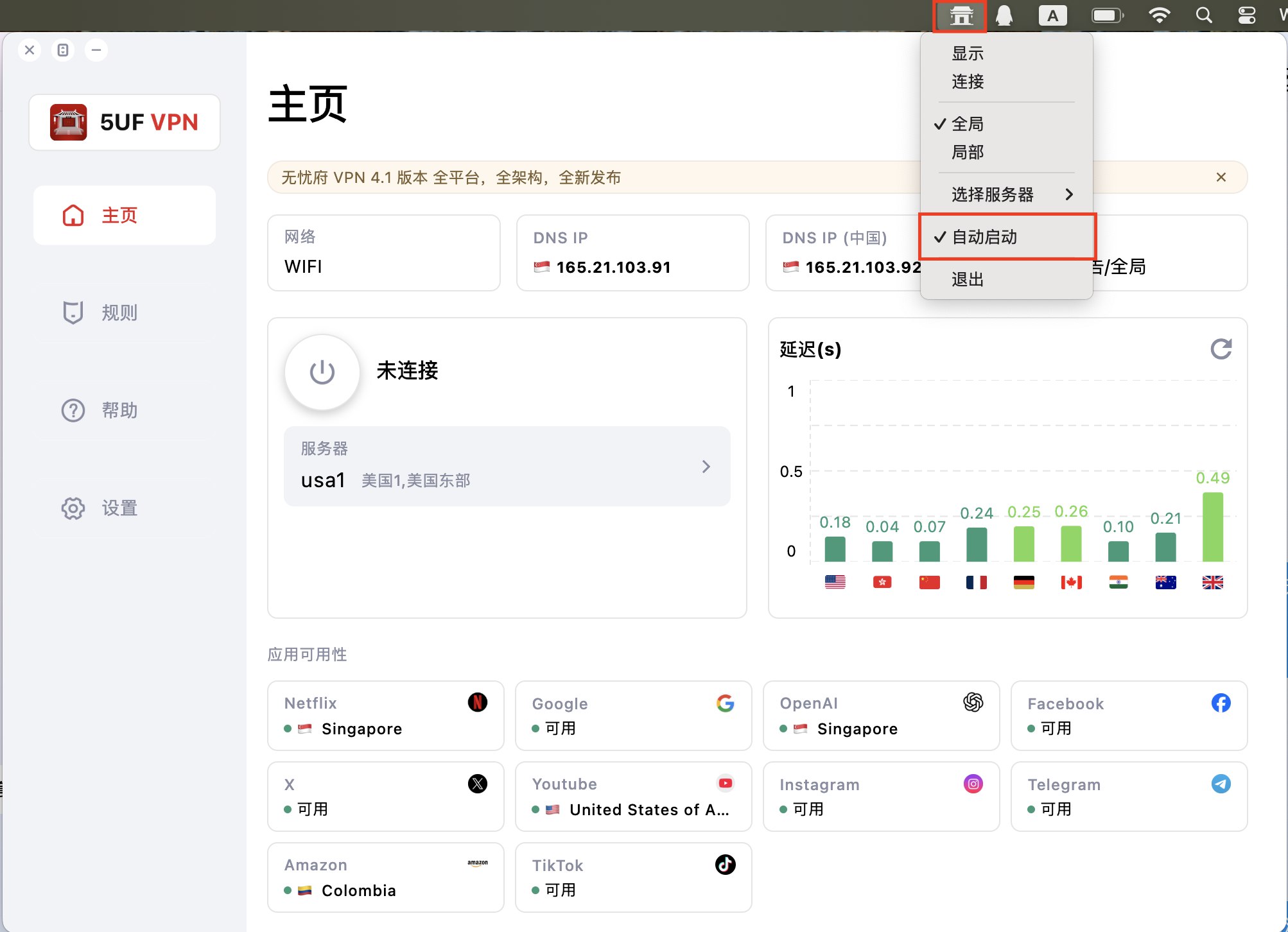
Method 2: Using System Settings
-
Open System Settings → General → Login Items & Extensions.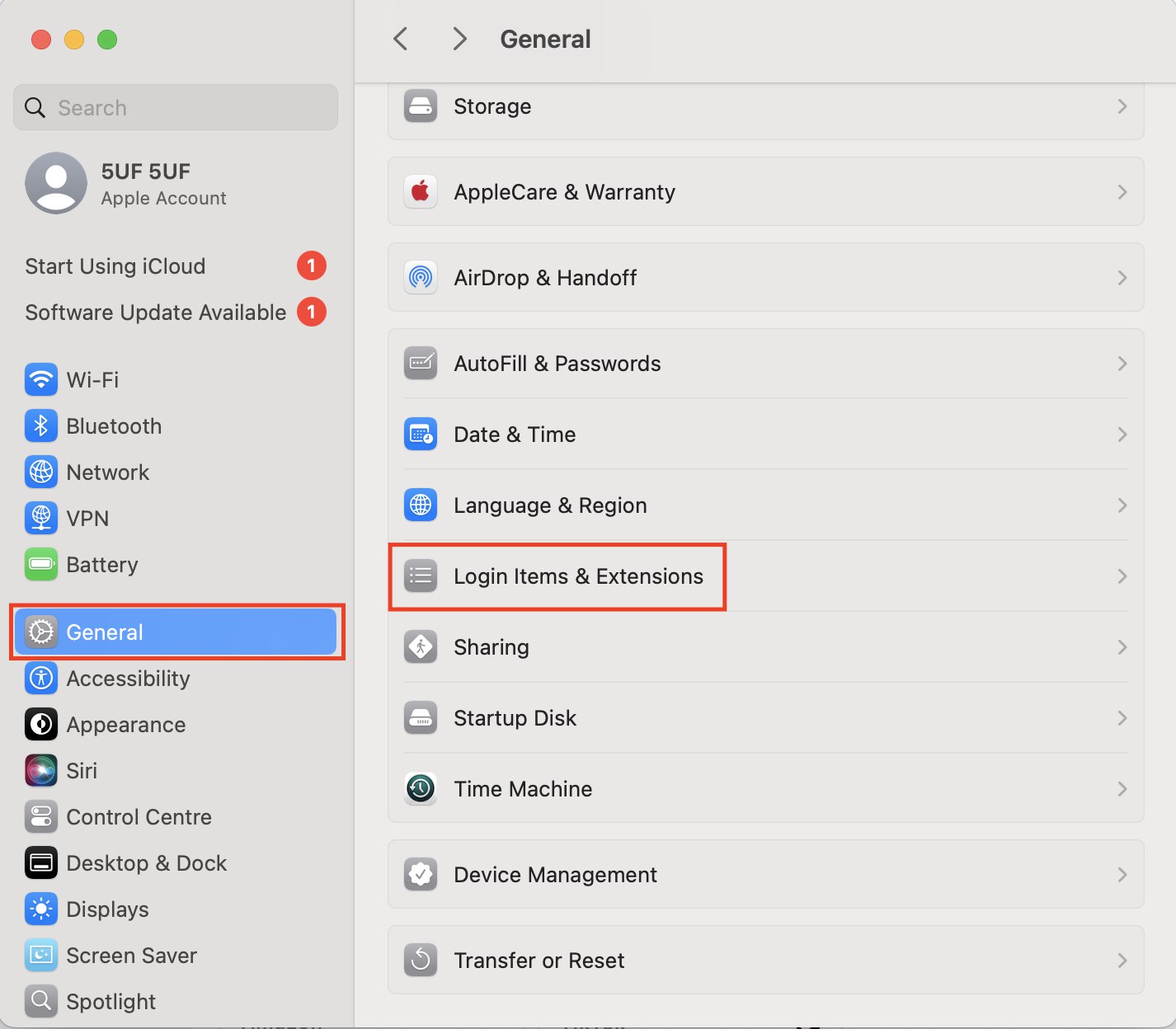
-
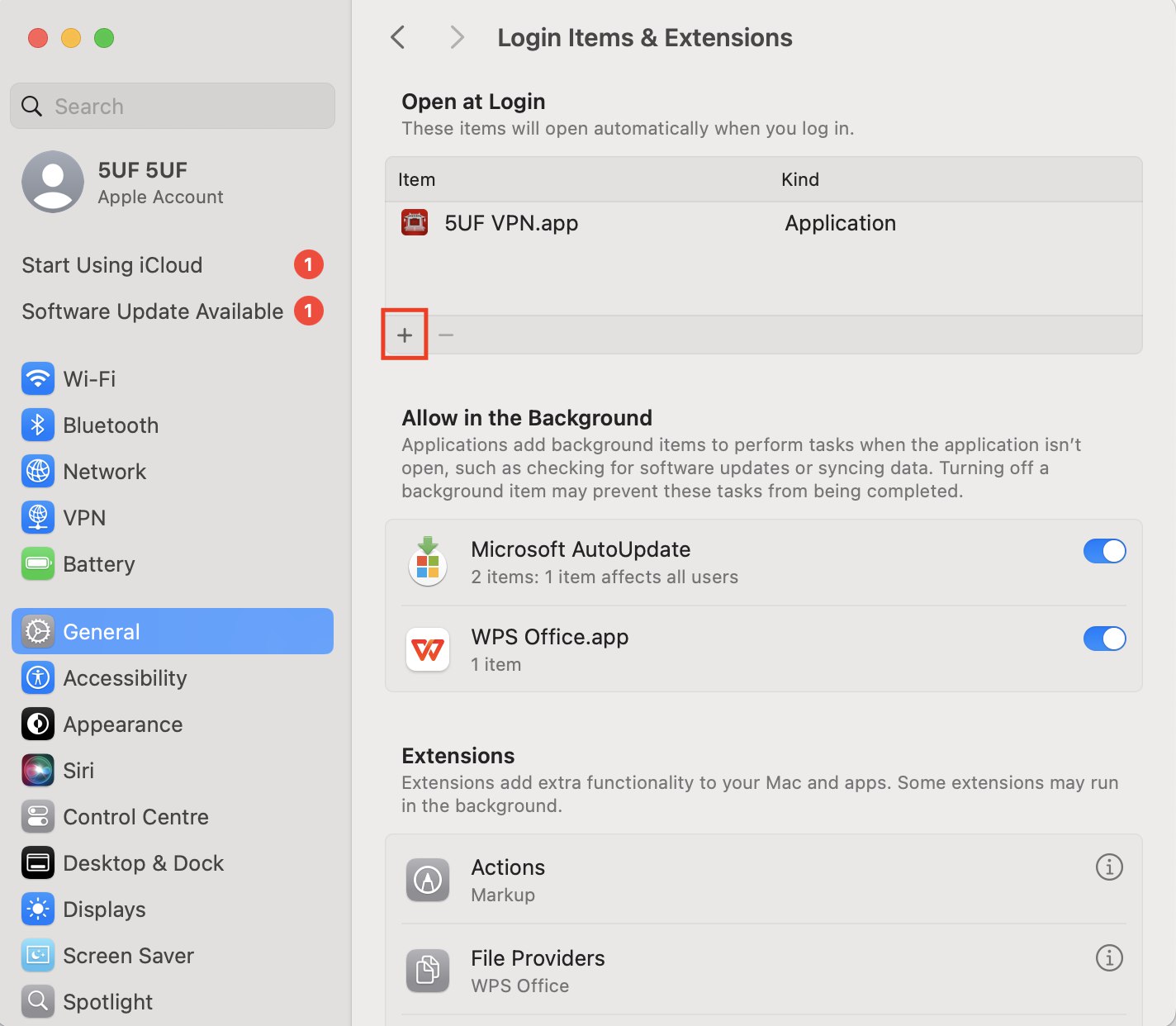
Click the + icon.
-
Select Applications.
-
Locate and select 5UF VPN.app.
-
Click Open to add it to your startup applications.
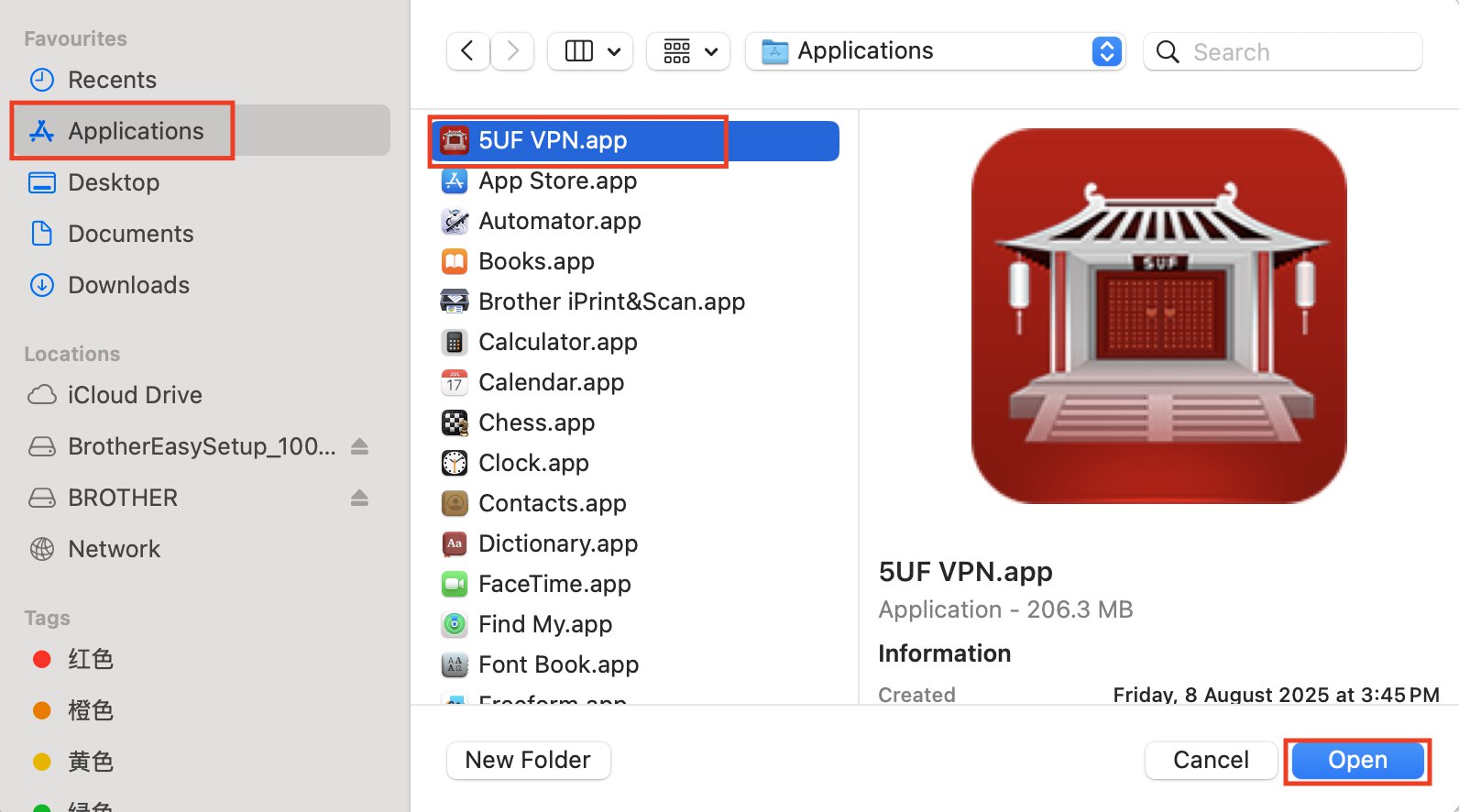
Open System Settings → General → Login Items & Extensions.
Click the + icon.
Select Applications.
Locate and select 5UF VPN.app.
Click Open to add it to your startup applications.
How to confirm your Mac processor
Steps to Download the Correct Version for macOS
-
Determine Your Mac’s Processor Type
-
Click the Apple menu () in the top-left corner of your screen and select About This Mac.
-
Under Chip or Processor, identify whether your Mac uses Apple Silicon (e.g., M1, M2, M3) or Intel.
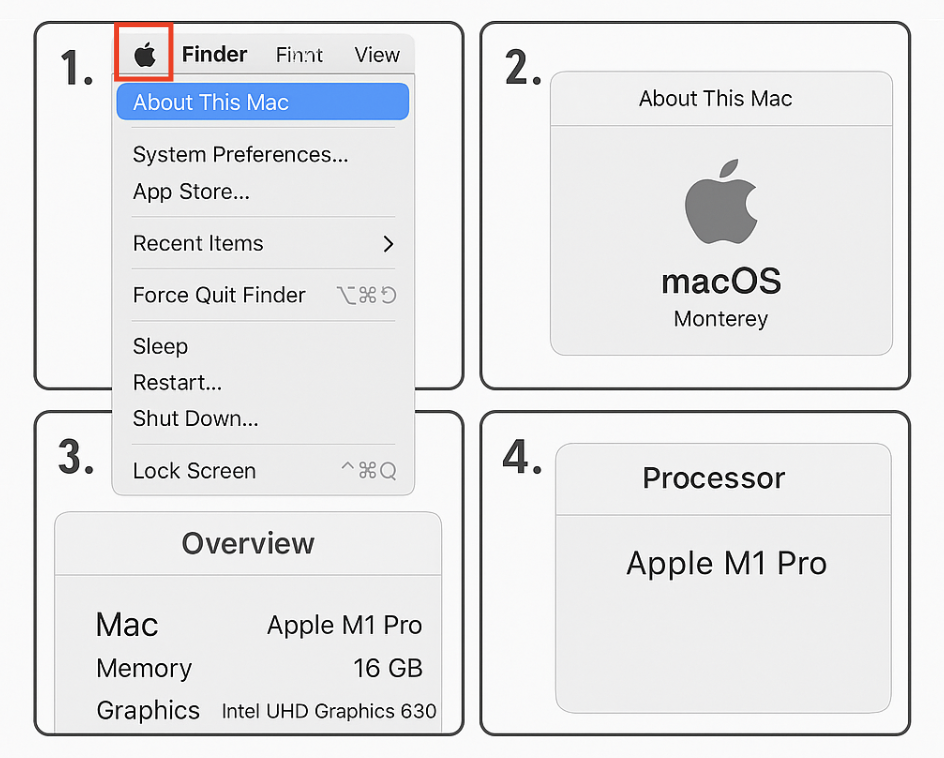
-
-
Access the Download Page
-
Visit: /download_app
-
-
Select macOS as Your Platform
-
On the website, choose Mac from the list of available platforms.
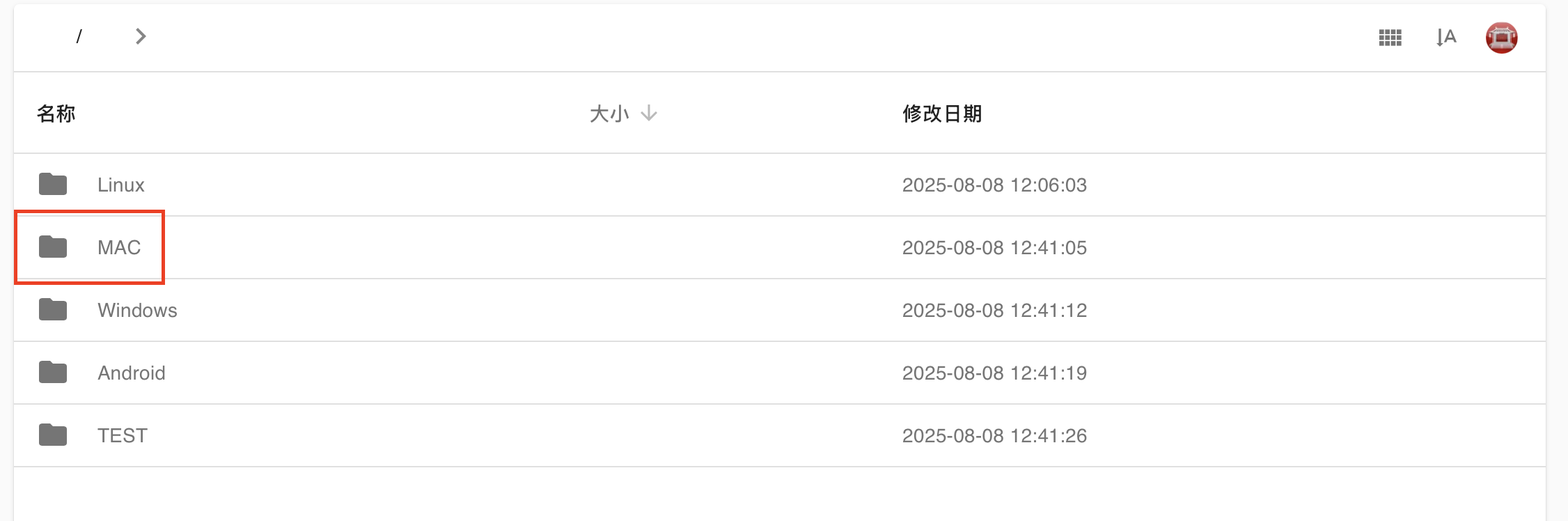
-
-
Download the Appropriate Version
-
For Apple Silicon (M1, M2, M3) — select the ARM64 version.
-
For Intel-based Macs — select the Intel x86_64 version.

-