


FAQ
What is the difference between relay nodes and direct nodes? 
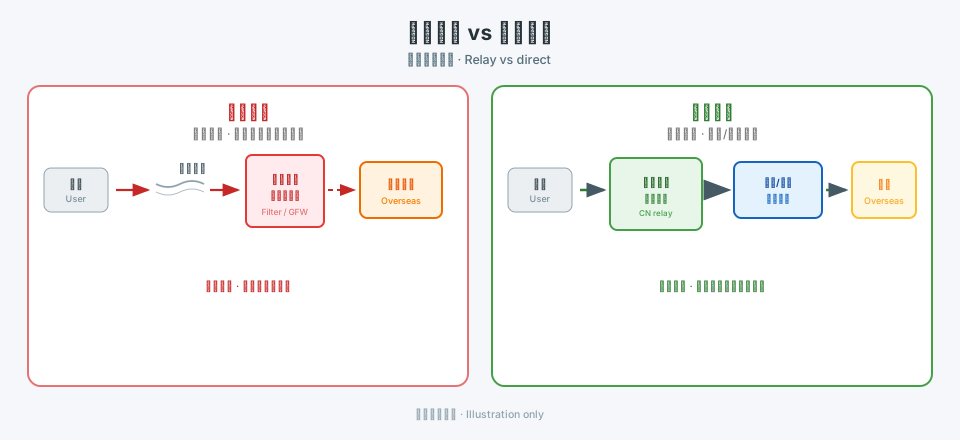
Relay (transit) nodes send traffic to a relay inside mainland China first, then forward it toward overseas destinations over dedicated or optimized backhaul. That path is often more predictable than raw public-internet crossings, which can mean better stability and higher peak performance for cross-border use. Building and operating relays costs more, so relay plans may differ from plain direct routes in pricing or lineup.
Direct nodes rely more on the public internet, connecting straight to overseas servers. Cross-border public paths may see packet loss, throttling, or intermittent blocking in some regions or hours. Even when a route works, speeds can plunge at busy times. If you are in mainland China and need reliability, relay lines are usually the safer choice.
5UF is among the few providers that can offer lawful mainland relay capacity alongside standard options. We also tune routing for selected sites and services. Example: some Hong Kong nodes may not work well with OpenAI ChatGPT over a plain path, but with relay and routing optimization, Hong Kong and similar regions can reach those AI services more reliably. If a specific AI site or service fails for you, contact support so we can prioritize routing fixes.
Available nodes depend on the app and the list on our site; plans differ in node types and counts. See your subscription details for what applies to you.
How to quickly select a server and run speed tests in the 5UF VPN app
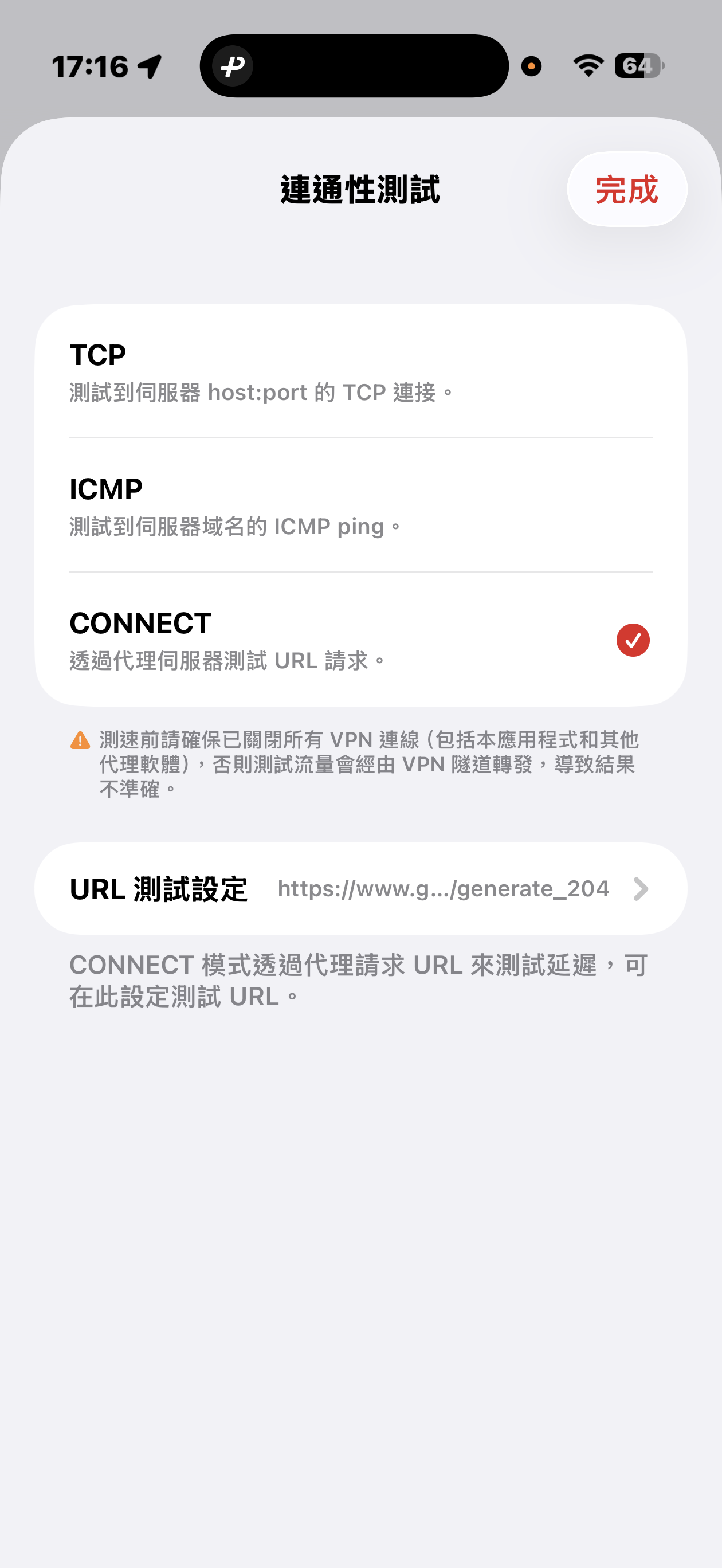
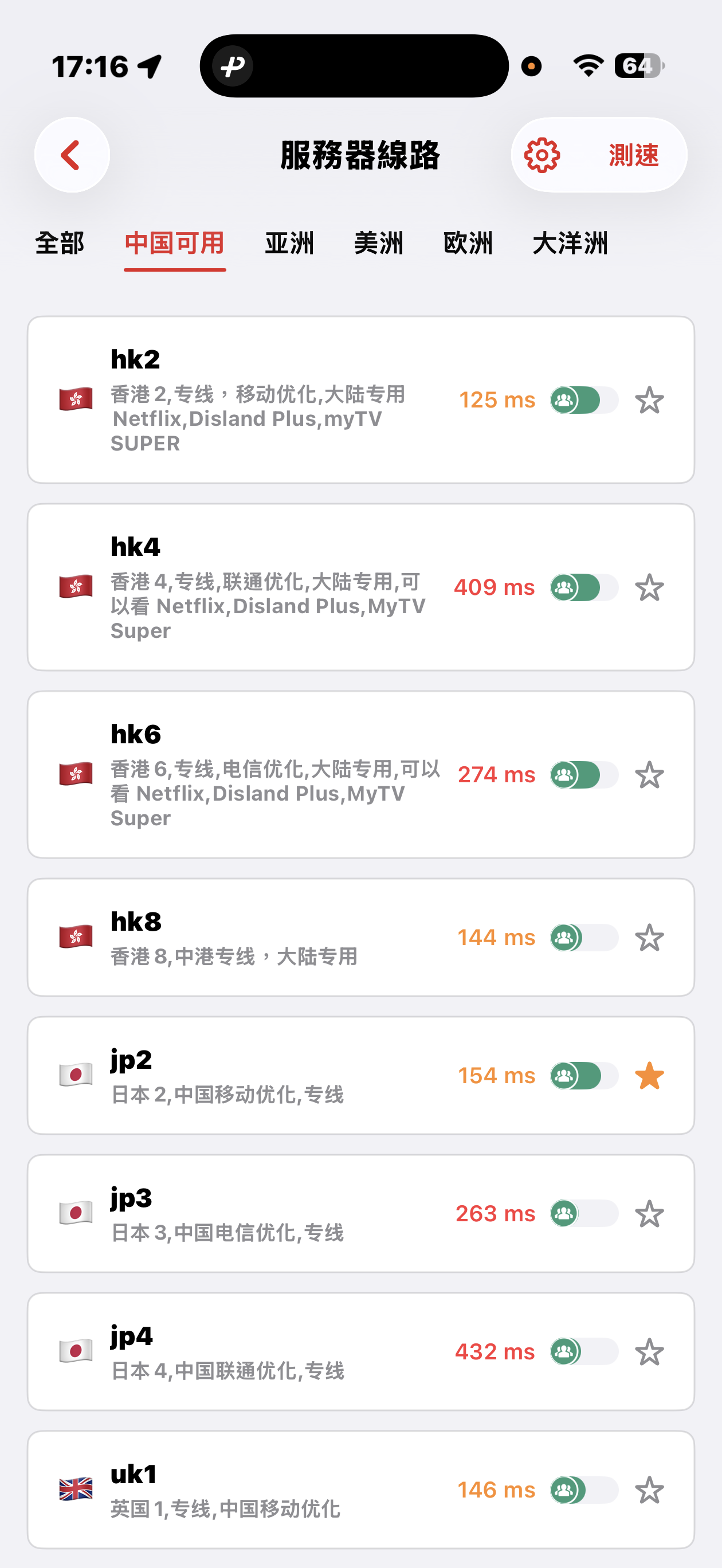
The 5UF VPN app offers quick connectivity tests from the server list screen: tap Speed test at the top right (sometimes next to a settings icon), open Connectivity test, then pick a method.
Three test modes
- TCP: Measures how long it takes to complete a TCP handshake to each server host and port. The app runs multiple probes and shows an average so you can compare routes quickly.
- ICMP: Sends ICMP echo (ping) to the server hostname, similar to the ping tools built into desktop and mobile systems, to see round-trip latency.
- CONNECT: Issues an HTTP(S) request to a test URL through the proxy path, which best mimics real VPN usage. It is usually the slowest mode, but in heavily restricted networks it helps find nodes that still work. You can change the test URL under URL test settings.
Before testing, disconnect all VPN and proxy software, including this app. Otherwise traffic may still go through a tunnel and the numbers will not reflect your raw local path.
Mainland China: Strict blocking may make some overseas nodes unreachable; that can be normal. Use the Available in China category for optimized dedicated lines that aim to stay usable under heavy filtering, with carrier hints for China Mobile, China Unicom, and China Telecom. Pick a line that matches your ISP or SIM.
Choosing a server: Auto-select uses TCP results, then picks one server at random from among the fastest, balancing speed and load. You can also browse by geography (for example Asia, Americas, Europe) and choose manually.
How does the 5UF VPN app home screen speed test work, and will it use much data?
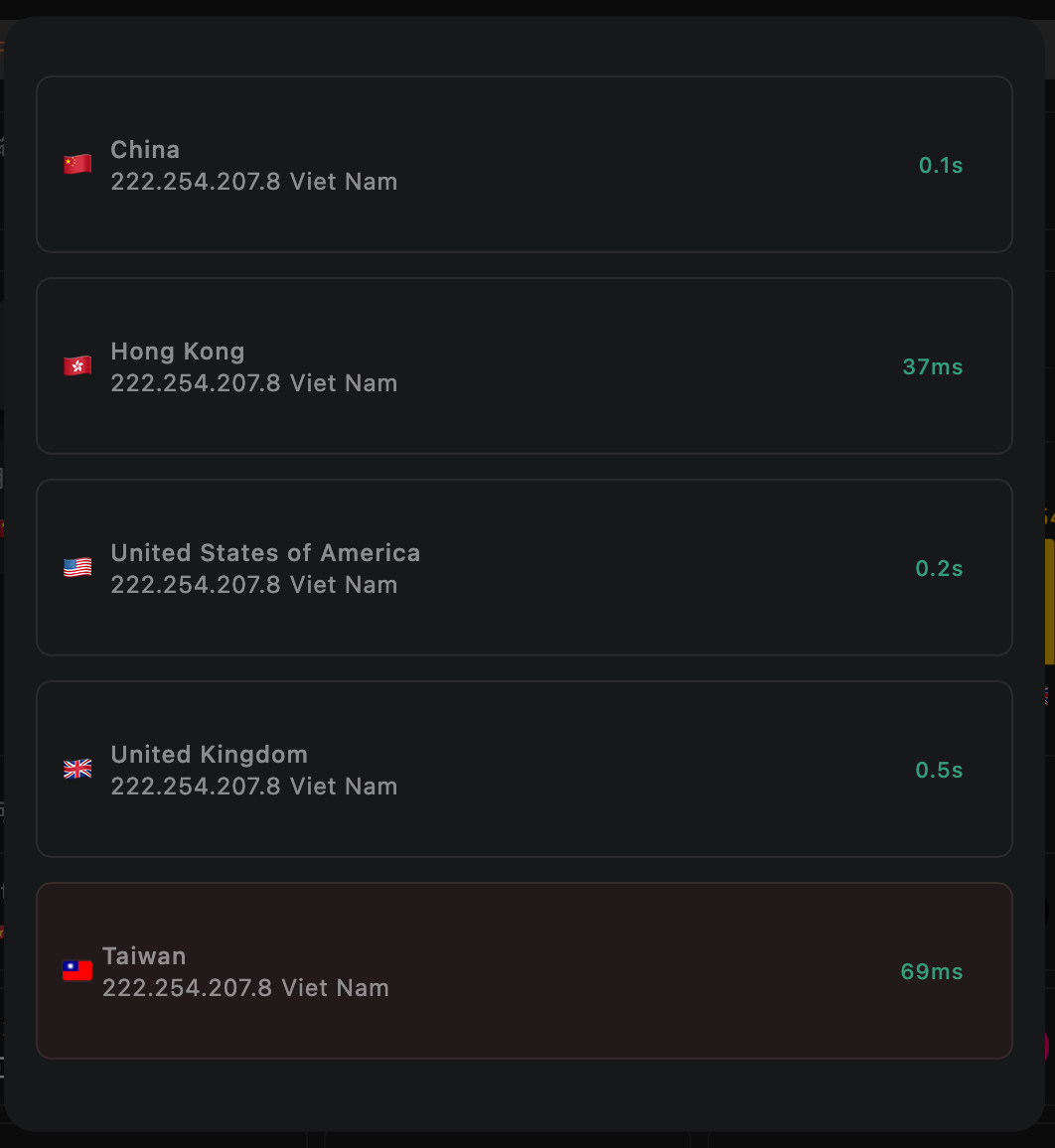
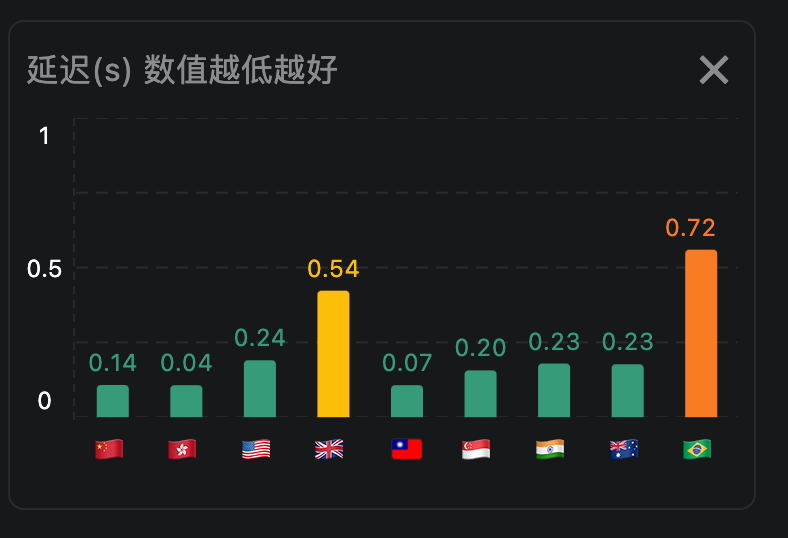
On the 5UF VPN (V5) home screen, the speed test sends a very small HTTP request to our dedicated test page. The page only shows your egress IP, so data usage is minimal and it should not meaningfully affect your allowance or billing.
The test measures network latency (how quickly you can reach a given node), not your maximum download speed. Unlike many tools that download large files to estimate peak bandwidth, we focus on round-trip delay to that node only.
We take multiple samples and show an average. Lower numbers mean faster response (lower latency) to that node.
What to do if the VPN cannot connect or is too slow
If you are using the latest 5UF VPN app, long-term connection failure is usually uncommon.
If you are on an older iOS release (for example iOS 15 or earlier) or you cannot use the official app on your device, you may hit compatibility or installation limits. Use a third-party VPN client with 5UF and follow this guide: How to use a third-party app with 5UF VPN (tutorial). The reinstall, speed-test, and ticket steps below mainly apply when you can run the official app.
On iOS 16 or later, update the official app to 5.3 or newer from the App Store before the steps below.
If the VPN cannot connect, the Connect button does nothing, throughput feels sluggish, or you are connected yet nothing resolves over the tunnel, work through this checklist:
1. What if tapping Connect does nothing?
This is usually not caused by the server itself. In most cases, the app was denied VPN permission the first time it asked the system to create the VPN connection.
The fastest solution is to reinstall the app.
- Uninstall the current app
- Install the latest 5UF VPN app again
- When you tap Connect again, allow the system to create the VPN connection
If the first permission request was denied, the system often will not properly trigger the VPN authorization flow again, so reinstalling is usually the fastest and simplest solution.
2. What if the VPN connects but the speed is slow?
The latest app already includes built-in speed testing and app availability checks on the home page, so you can evaluate the current network condition before switching servers blindly.
- You can test latency for servers in different countries from the home page
- In general, a result of under 1 second is considered relatively normal
- After switching to another server, the app can test again so you can compare quickly
- The app also checks availability for major services such as TikTok
- It can also help you identify which service region the current server is closer to, such as Japan or Hong Kong
These tools help you quickly understand whether the problem is caused by the current server, your current network environment, or the service you are trying to use.
3. The tunnel shows connected, but absolutely nothing loads — then what?
If the VPN connects successfully yet browsers and apps remain completely unreachable, don't assume it's only the remote node — check whether your local uplink network is blocking or rewriting traffic.
- Switch networks (Wi‑Fi vs cellular vs another ISP hotspot). If browsing works normally on another network, the issue is likely specific to your previous network exit.
- Clarify whether this ever worked before on the same network, or started only recently — that timeline narrows investigations a lot.
When you're already in the connected-but-no-Internet situation and reinstalling, plus resetting rules to defaults/clearing custom policies, still doesn't help — try a full quit of the desktop/mobile client:
- iOS/iPad/macOS: make sure there's no lingering VPN/control icon in the menu/status area after you quit (exact UI varies). If unsure, swipe the app away from the app switcher, then reboot when needed.
- Windows: ensure the tray icon is gone — if unsure, inspect Task Manager for orphaned processes or restart Windows before launching only the 5UF client.
After a clean reopen (or reboot), open a ticket and attach network diagnostics, speed test output, app availability results, and uploaded logs wherever the form offers them — those artefacts help us troubleshoot stubborn edge cases faster.
4. What if none of this fixes it?
If you followed the checklist but the VPN stays slow, never connects, or still cannot reach anything while connected, use the integrated ticket wizard and ping support.
- Open the support ticket section in the latest app
- At the bottom of each ticket page, you will see related action buttons
- Send the test results to support
- Our support team can use your speed test, app availability test, and network diagnostic results to identify the issue faster
The ticket system now supports better email and push notifications, making it easier for us to contact you and solve the issue more quickly.
Recommendation: when you run into a problem, start with the built-in speed test, app availability check, and ticket feedback tools in the latest 5UF VPN app. This is usually faster and more accurate than describing the problem manually.