


FAQ
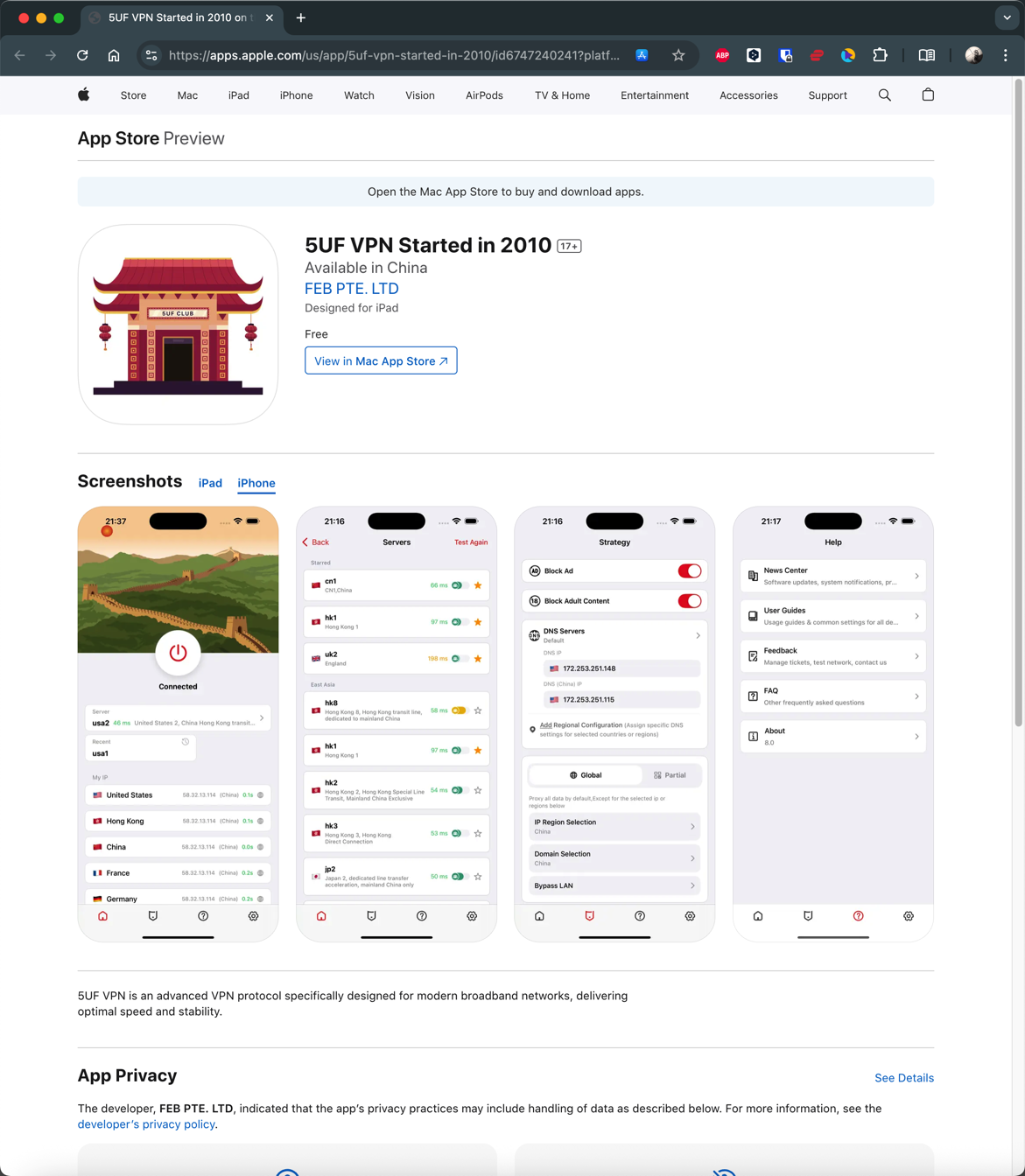
How to install 5UF APP in iPhone 

IOS download:
https://apps.apple.com/us/app/id6747240241
Chinese users need to use an account from a non-mainland China app store to download the app.
Why does my membership show only 7 days after subscribing monthly/yearly through Apple?
If you subscribed through Apple In‑App Purchase, Apple often attaches an introductory period (sometimes shown as a free trial — exact wording and length appear on Apple's checkout screen; seven days is typical).
During that period payment usually hasn't cleared yet, so the remaining time you see in the app (for example about seven days left) usually reflects the trial window, not your full monthly or yearly entitlement already granted.
After the trial: if you have not cancelled before it ends, Apple begins the paid subscription, and your membership duration then advances according to the plan you chose. You may cancel anytime during the trial from Settings → Apple ID → Subscriptions (or the subscription section in the App Store) if you don't want it to renew automatically.
Note: Exact billing timing follows Apple's receipt and subscription terms; wording may vary by region.
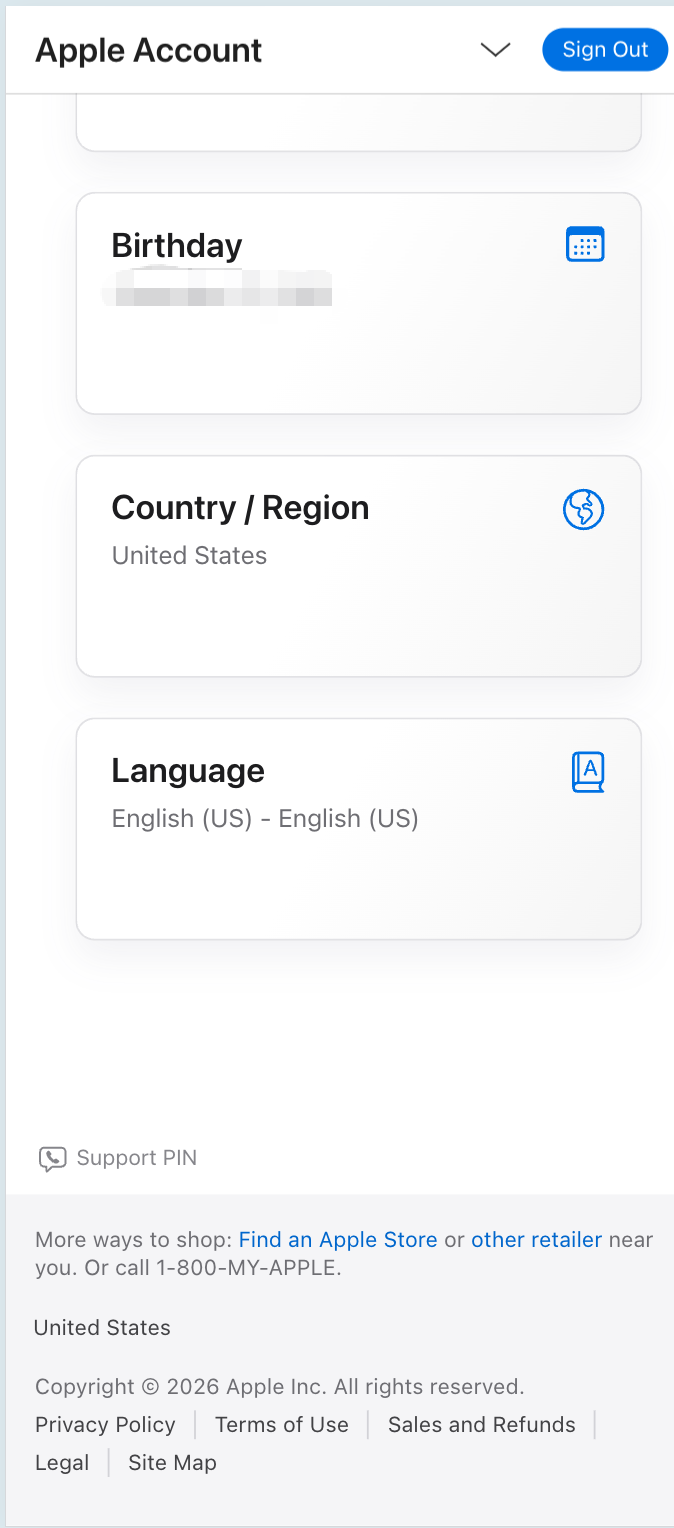
How do I check which country or region my Apple ID is set to?
To see which country or region your Apple ID is registered in (for example US, Hong Kong, etc.), use Apple’s official account site.
Recommended: sign in with your browser and open the account information section—look for Country or Region.
Direct link (sign in required): Apple ID — Account information
Note: menus may vary slightly by language or iOS version. On iPhone you can also check under Settings → Apple ID → Media & Purchases / Payment & Shipping, or the region shown for the App Store account.
Your region affects which apps appear in the App Store and which payment methods are available. Use an Apple ID that matches the storefront you need, and follow Apple’s terms.
What if the official app has compatibility or connection issues on iOS?
Make sure 5UF VPN is the latest version from the App Store. Builds 5.3 and newer officially support iOS 16 and later, fixing most cases where the app could not run on iOS 16. If your iPhone or iPad runs iOS 16+, update the app to 5.3 or higher (use the version number shown in the App Store).
More details: iOS client update announcement.
On iOS 15 or earlier, or if the hardware cannot upgrade to iOS 16+, the official app may still be limited. You can:
- Upgrade iOS as far as your device allows, then install or update the official app; or
- Use a third-party VPN client with 5UF where appropriate.
Tutorial: How to use a third-party app with 5UF VPN
If issues remain on 5.3+, contact support with your iOS and app version.
What to do if the VPN cannot connect or is too slow
If you are using the latest 5UF VPN app, long-term connection failure is usually uncommon.
If you are on an older iOS release (for example iOS 15 or earlier) or you cannot use the official app on your device, you may hit compatibility or installation limits. Use a third-party VPN client with 5UF and follow this guide: How to use a third-party app with 5UF VPN (tutorial). The reinstall, speed-test, and ticket steps below mainly apply when you can run the official app.
On iOS 16 or later, update the official app to 5.3 or newer from the App Store before the steps below.
If the VPN cannot connect, the Connect button does nothing, throughput feels sluggish, or you are connected yet nothing resolves over the tunnel, work through this checklist:
1. What if tapping Connect does nothing?
This is usually not caused by the server itself. In most cases, the app was denied VPN permission the first time it asked the system to create the VPN connection.
The fastest solution is to reinstall the app.
- Uninstall the current app
- Install the latest 5UF VPN app again
- When you tap Connect again, allow the system to create the VPN connection
If the first permission request was denied, the system often will not properly trigger the VPN authorization flow again, so reinstalling is usually the fastest and simplest solution.
2. What if the VPN connects but the speed is slow?
The latest app already includes built-in speed testing and app availability checks on the home page, so you can evaluate the current network condition before switching servers blindly.
- You can test latency for servers in different countries from the home page
- In general, a result of under 1 second is considered relatively normal
- After switching to another server, the app can test again so you can compare quickly
- The app also checks availability for major services such as TikTok
- It can also help you identify which service region the current server is closer to, such as Japan or Hong Kong
These tools help you quickly understand whether the problem is caused by the current server, your current network environment, or the service you are trying to use.
3. The tunnel shows connected, but absolutely nothing loads — then what?
If the VPN connects successfully yet browsers and apps remain completely unreachable, don't assume it's only the remote node — check whether your local uplink network is blocking or rewriting traffic.
- Switch networks (Wi‑Fi vs cellular vs another ISP hotspot). If browsing works normally on another network, the issue is likely specific to your previous network exit.
- Clarify whether this ever worked before on the same network, or started only recently — that timeline narrows investigations a lot.
When you're already in the connected-but-no-Internet situation and reinstalling, plus resetting rules to defaults/clearing custom policies, still doesn't help — try a full quit of the desktop/mobile client:
- iOS/iPad/macOS: make sure there's no lingering VPN/control icon in the menu/status area after you quit (exact UI varies). If unsure, swipe the app away from the app switcher, then reboot when needed.
- Windows: ensure the tray icon is gone — if unsure, inspect Task Manager for orphaned processes or restart Windows before launching only the 5UF client.
After a clean reopen (or reboot), open a ticket and attach network diagnostics, speed test output, app availability results, and uploaded logs wherever the form offers them — those artefacts help us troubleshoot stubborn edge cases faster.
4. What if none of this fixes it?
If you followed the checklist but the VPN stays slow, never connects, or still cannot reach anything while connected, use the integrated ticket wizard and ping support.
- Open the support ticket section in the latest app
- At the bottom of each ticket page, you will see related action buttons
- Send the test results to support
- Our support team can use your speed test, app availability test, and network diagnostic results to identify the issue faster
The ticket system now supports better email and push notifications, making it easier for us to contact you and solve the issue more quickly.
Recommendation: when you run into a problem, start with the built-in speed test, app availability check, and ticket feedback tools in the latest 5UF VPN app. This is usually faster and more accurate than describing the problem manually.
How to add 5UF to Control Center (iOS – Edit)
Adding 5UF to Control Center (iOS – Edit)
The following procedure outlines how to add the 5UF application to your Control Center, enabling immediate VPN activation directly from the system interface.
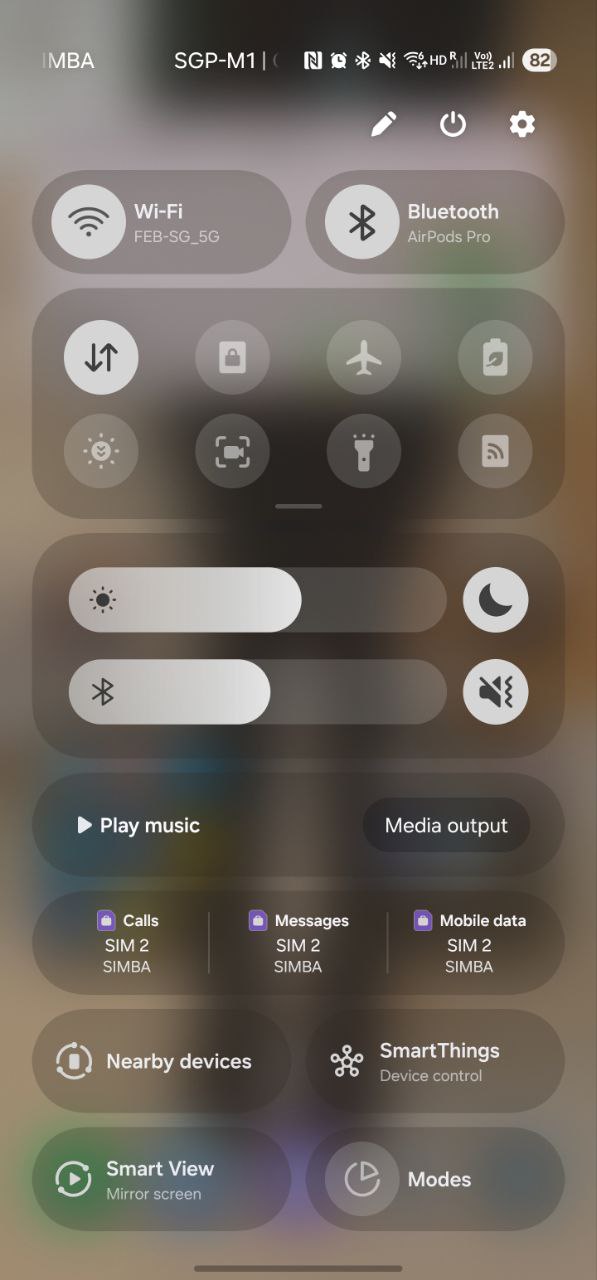
Step 1 — Access the Control Panel
Swipe downward from the top-right corner of the display to reveal the Control Center.
Step 2 — Enter Edit Mode
Click the edit button on the top right corner of the screen to enter edit mode.
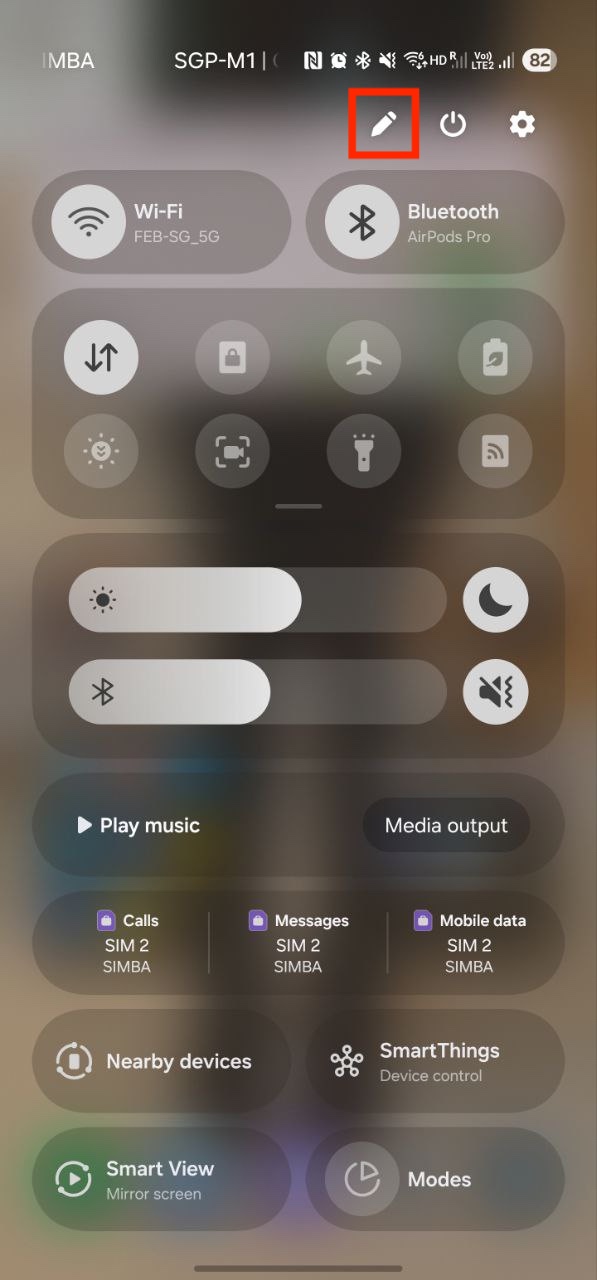
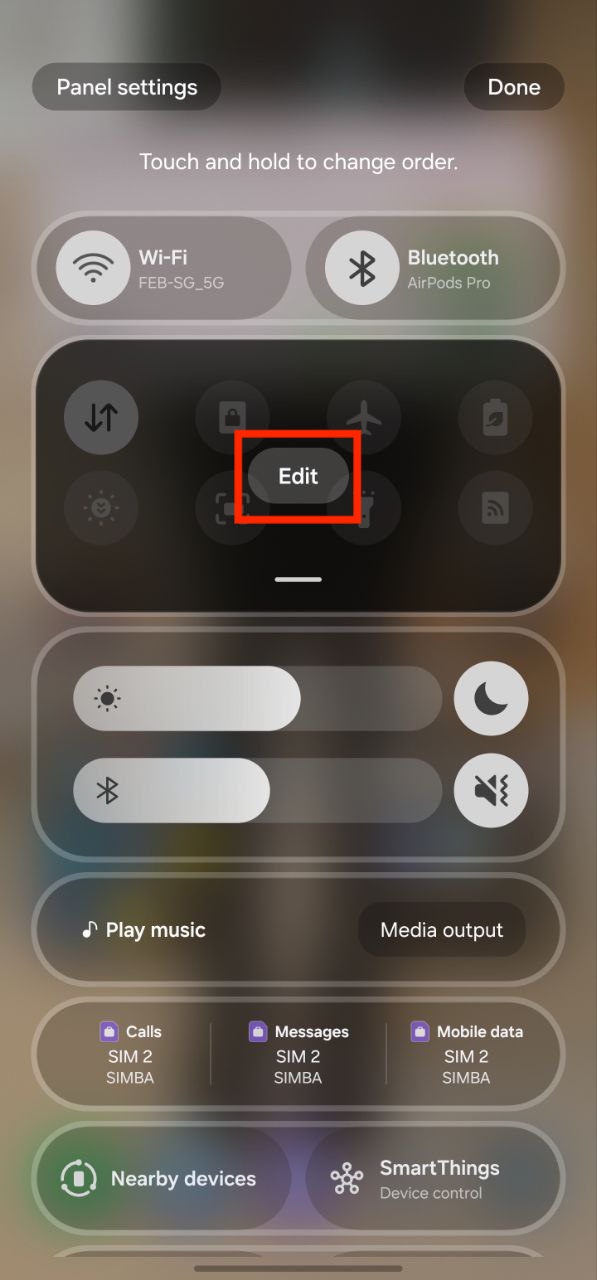
Step 3 — Add the 5UF Control
Select the 5UF application from the available buttons at the bottom of the screen to add it to the control panel.
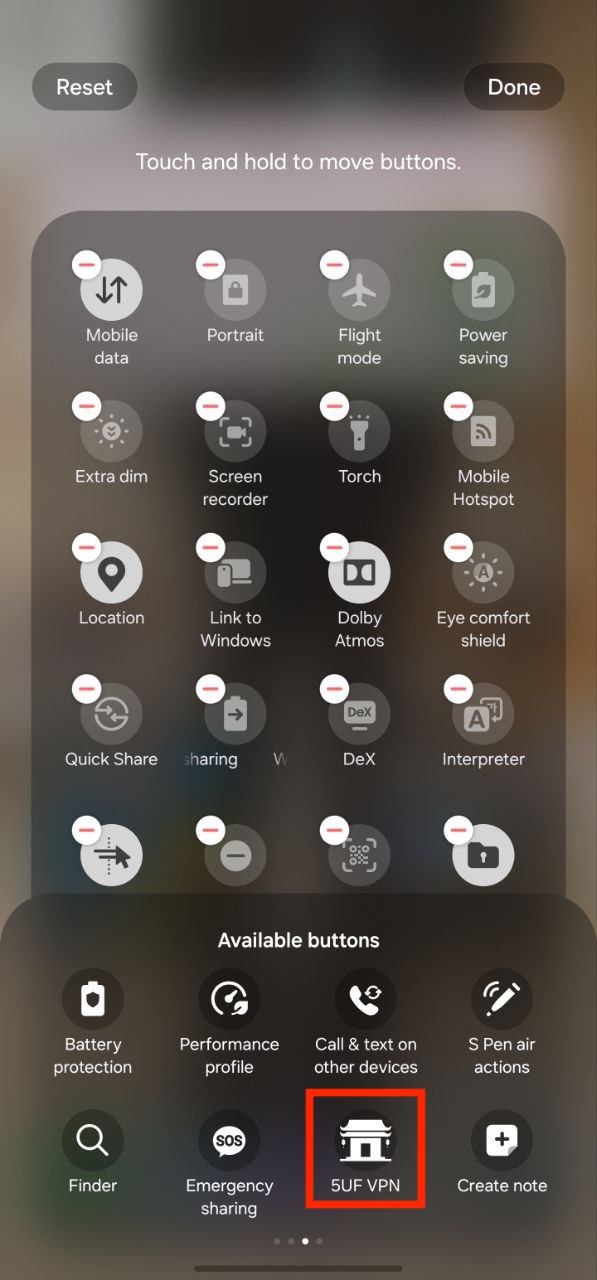
Completion
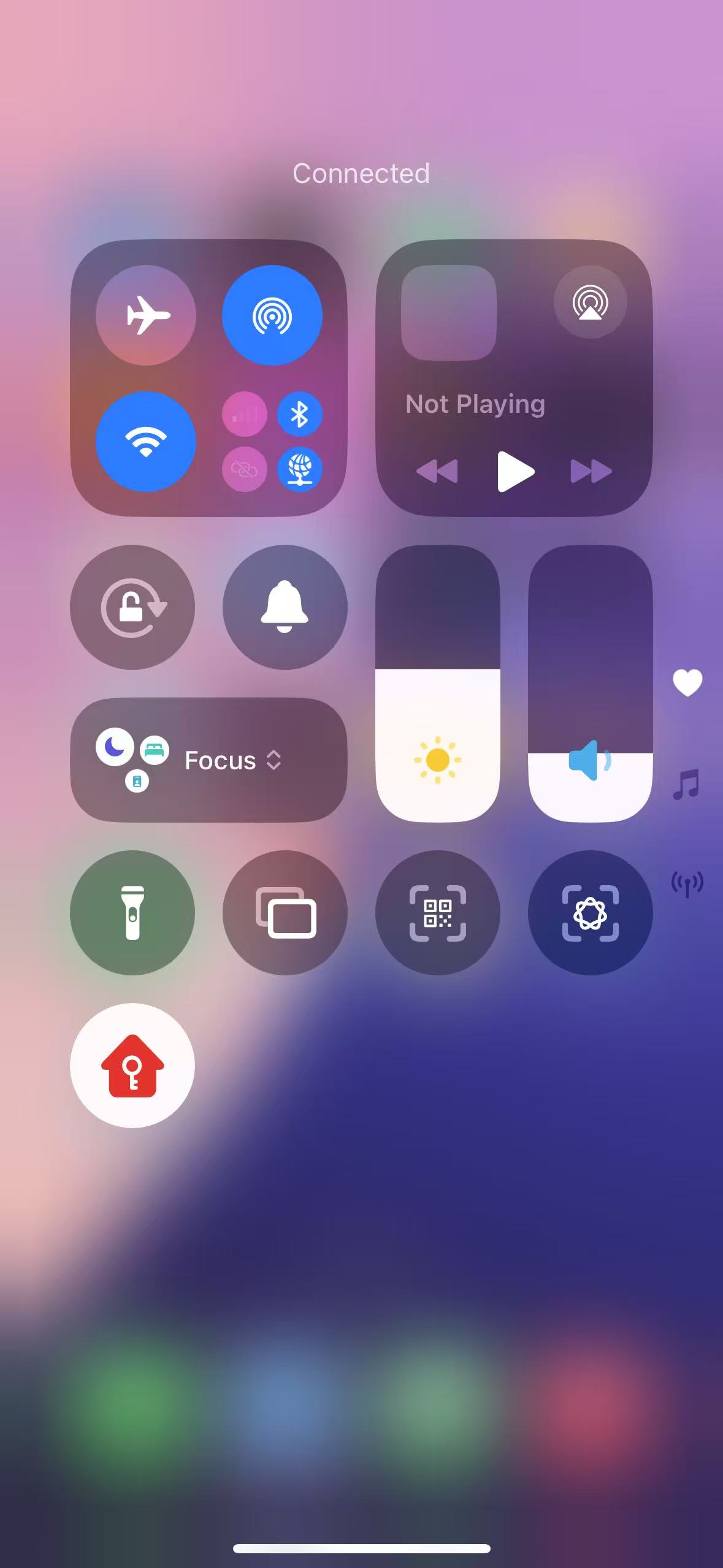
Once the control has been added, the 5UF VPN can be activated instantly by tapping the 5UF icon within the control panel.
How to add 5UF to Control Center (iOS – Add Control)
Adding 5UF to Control Center (iOS – Add Control)
The following procedure outlines how to add the 5UF application to your Control Center, enabling immediate VPN activation directly from the system interface.
Step 1 — Access the Control Panel
Swipe downward from the top-right corner of the display to reveal the Control Center.
Step 2 — Enter Edit Mode
Press and hold any unoccupied area within the control panel, then select “Add a Control” from the options displayed at the bottom of the screen.
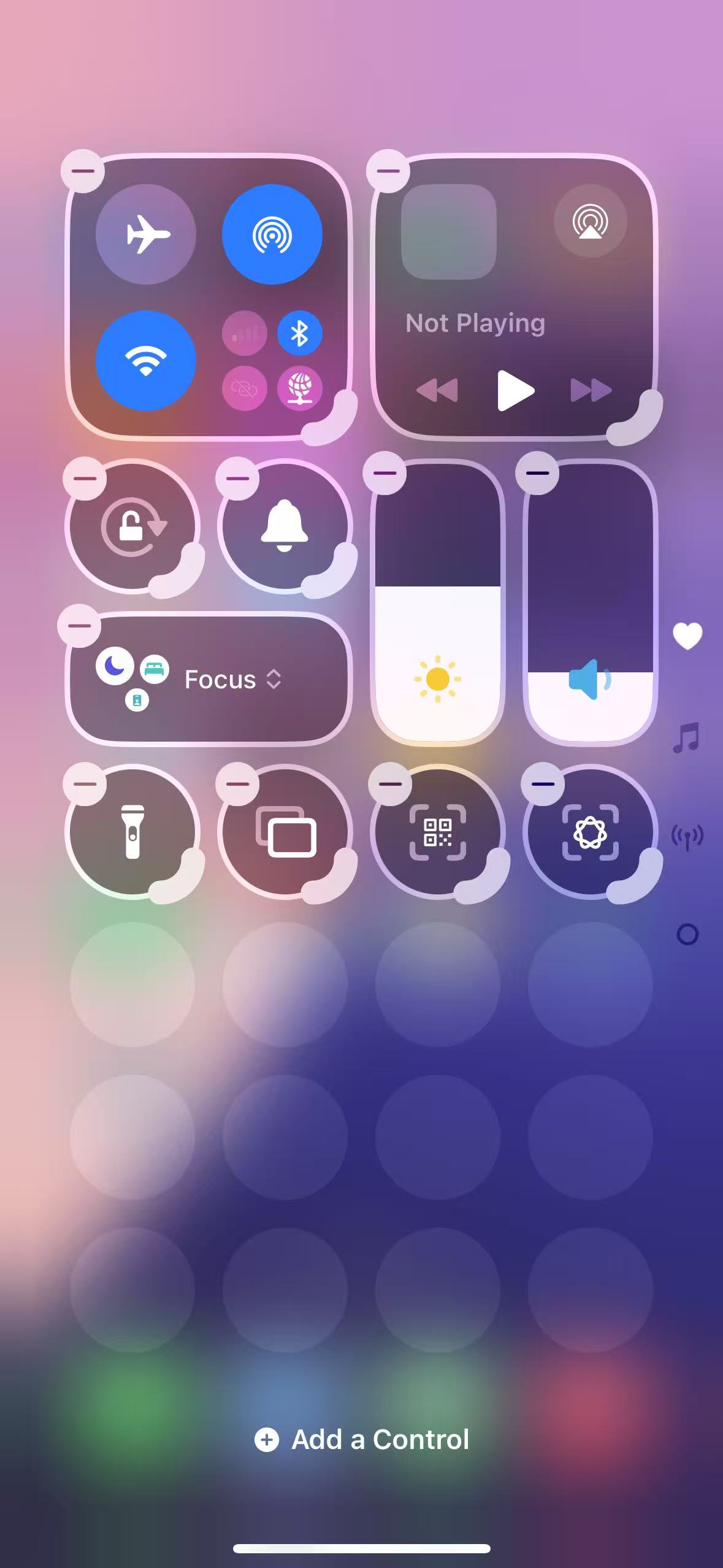
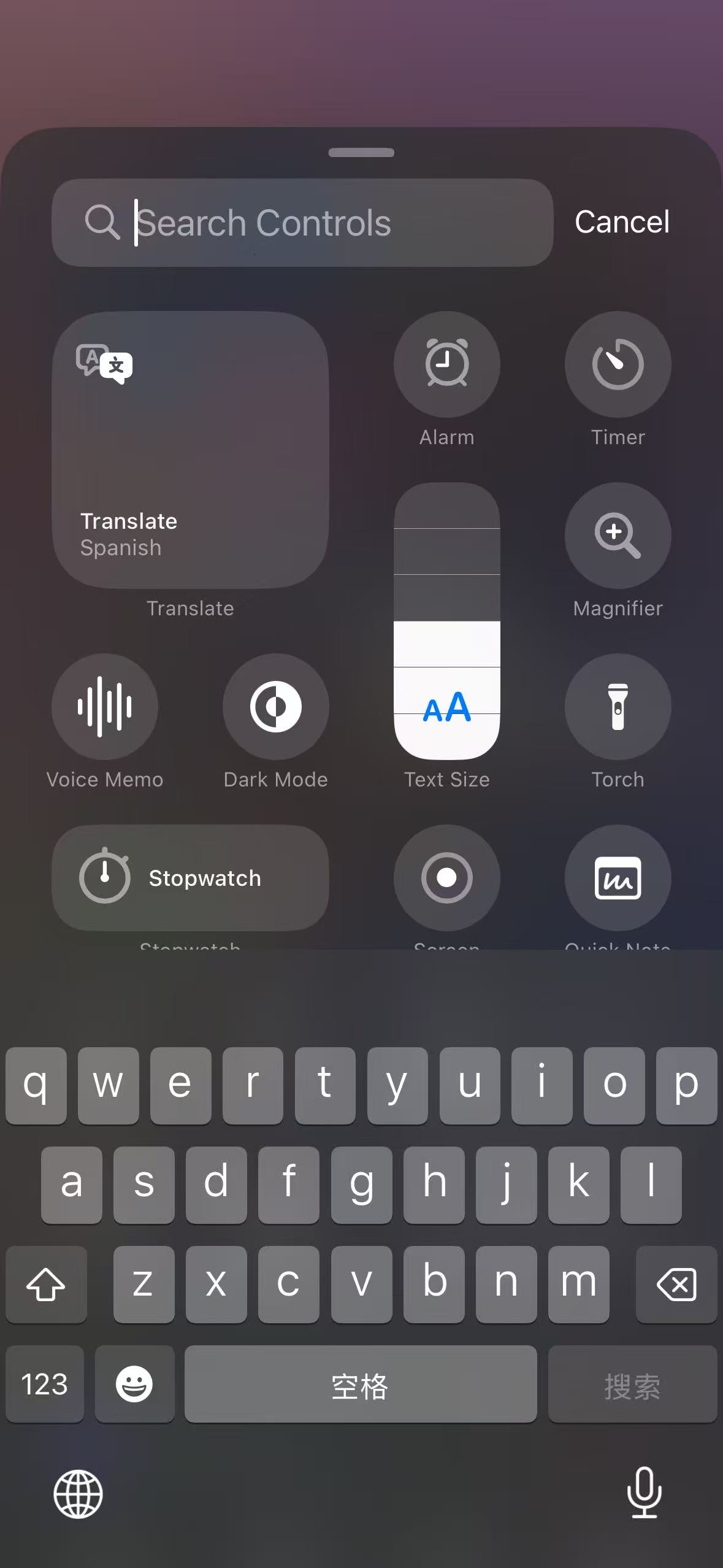
Step 3 — Add the 5UF Control
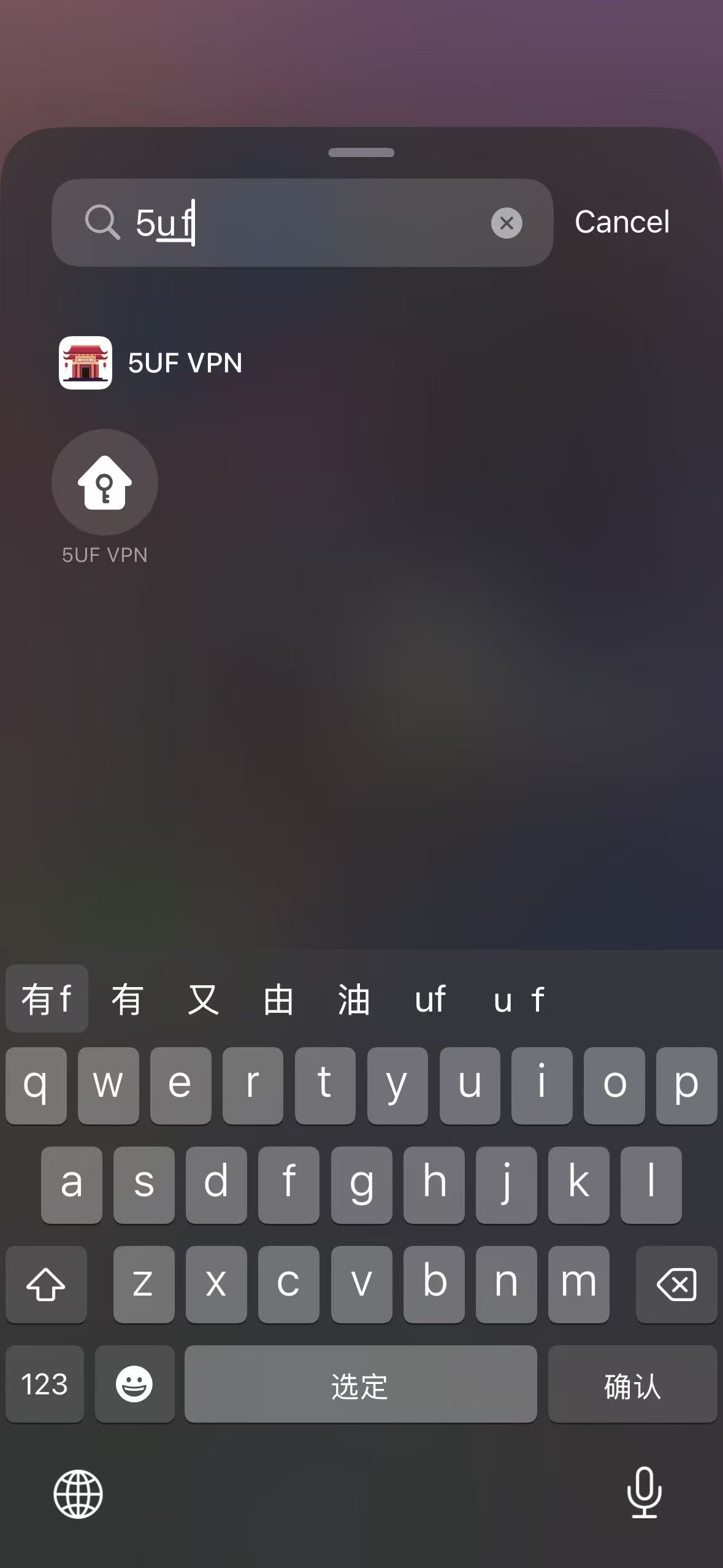
In the search field located at the top of the interface, type “5UF”.
Select the 5UF application from the search results to add it to the control panel.
Completion
Once the control has been added, the 5UF VPN can be activated instantly by tapping the 5UF icon within the control panel.
iPhone iPad to use trojan
1. Download the client
IOS currently supports
Sing-box VT: https://apps.apple.com/us/app/sing-box-vt/id6673731168
Shadowrocket: https://apps.apple.com/us/app/shadowrocket/id932747118
Stash: https://apps.apple.com/us/app/stash-rule-based-proxy/id1596063349
Quantumult X: https://apps.apple.com/us/app/quantumult-x/id1443988620
You need an Apple account outside of mainland China to download these apps.
2. Click Import
Get the subscription address from our website
/xray_config
3. Use
Get started
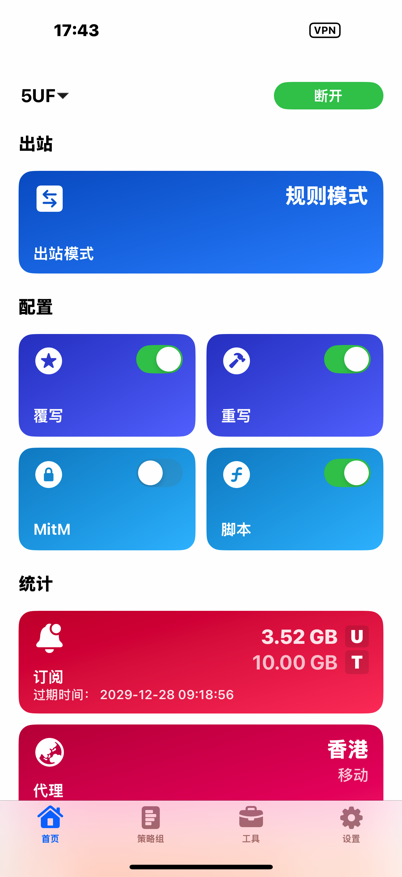
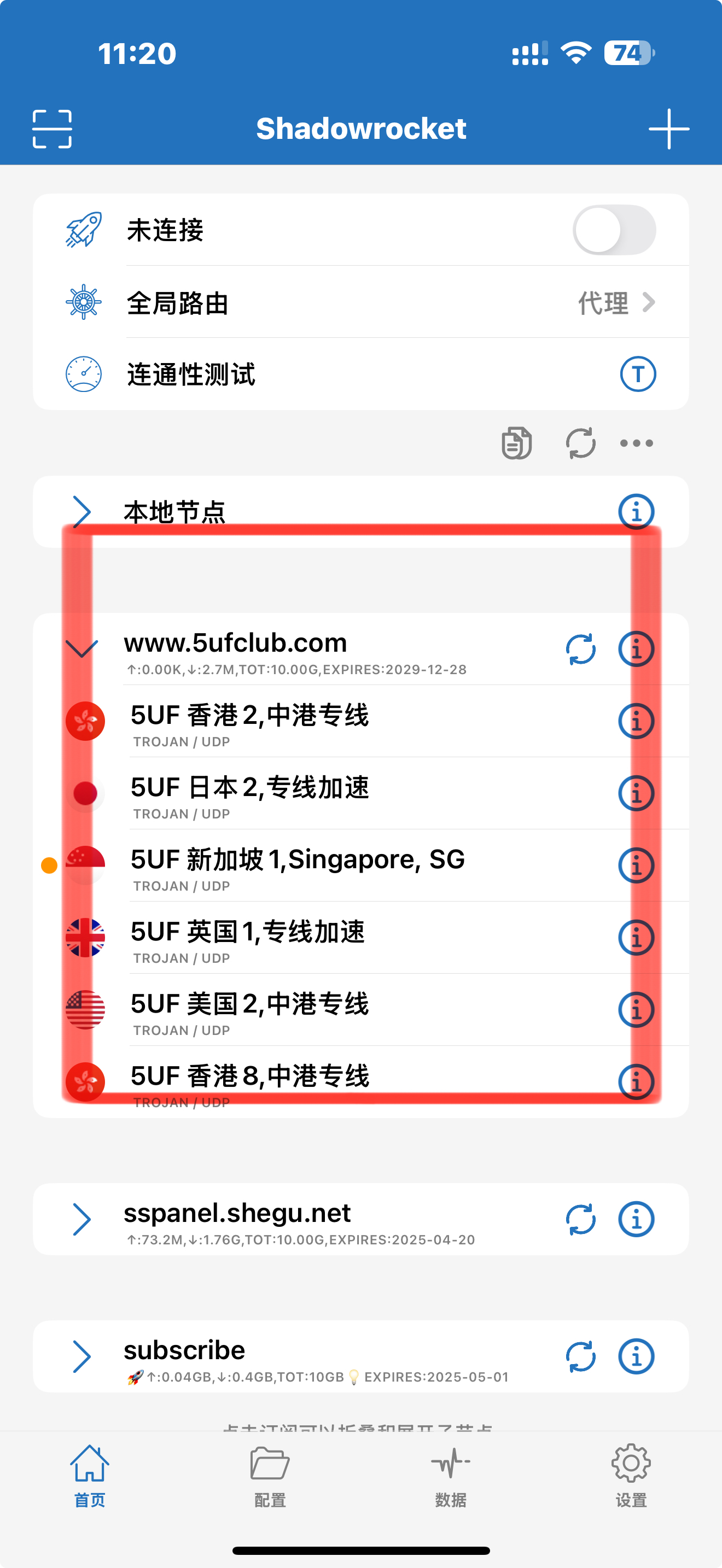
可以展示订阅的信息,如流量和到期时间
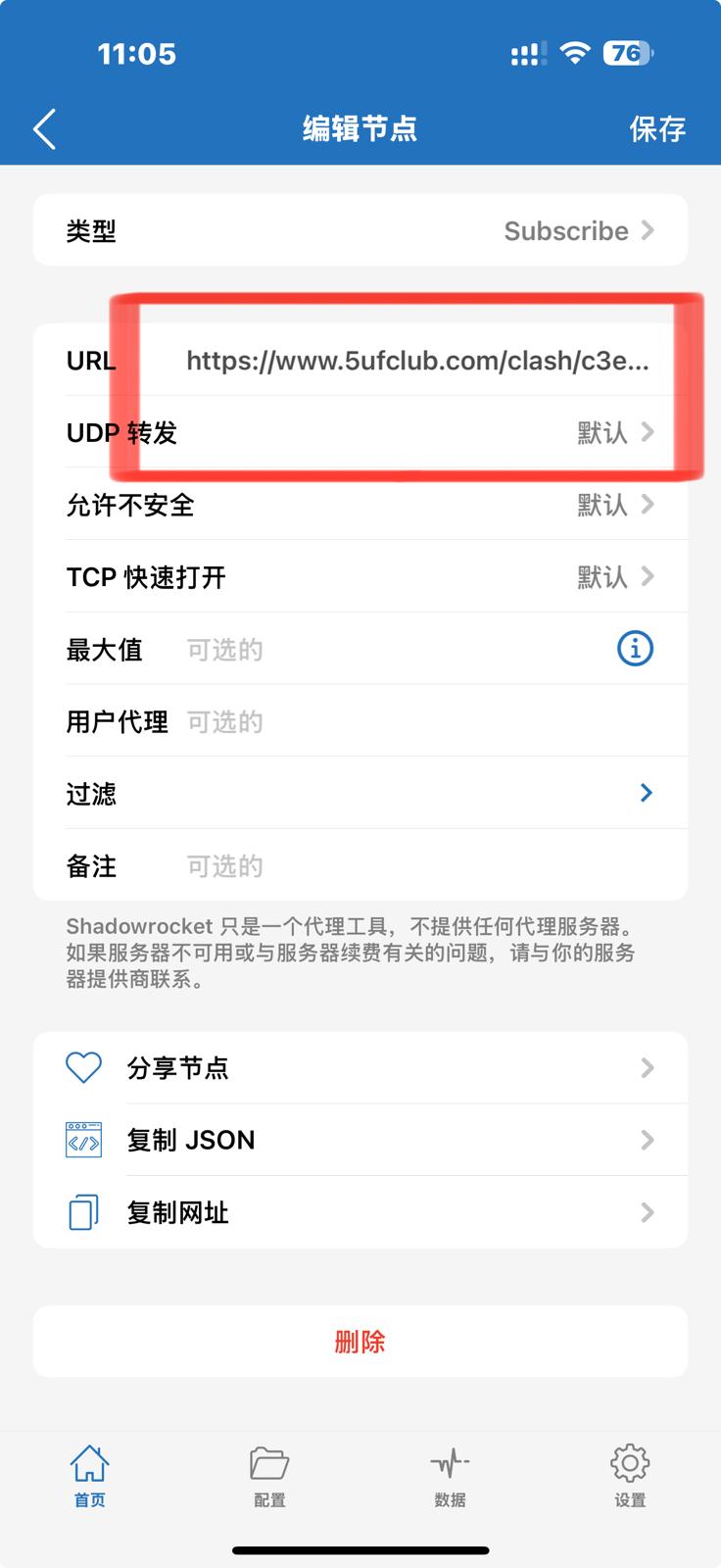
2.使用 Shaowrocket 的截图
点击右上角的“添加”
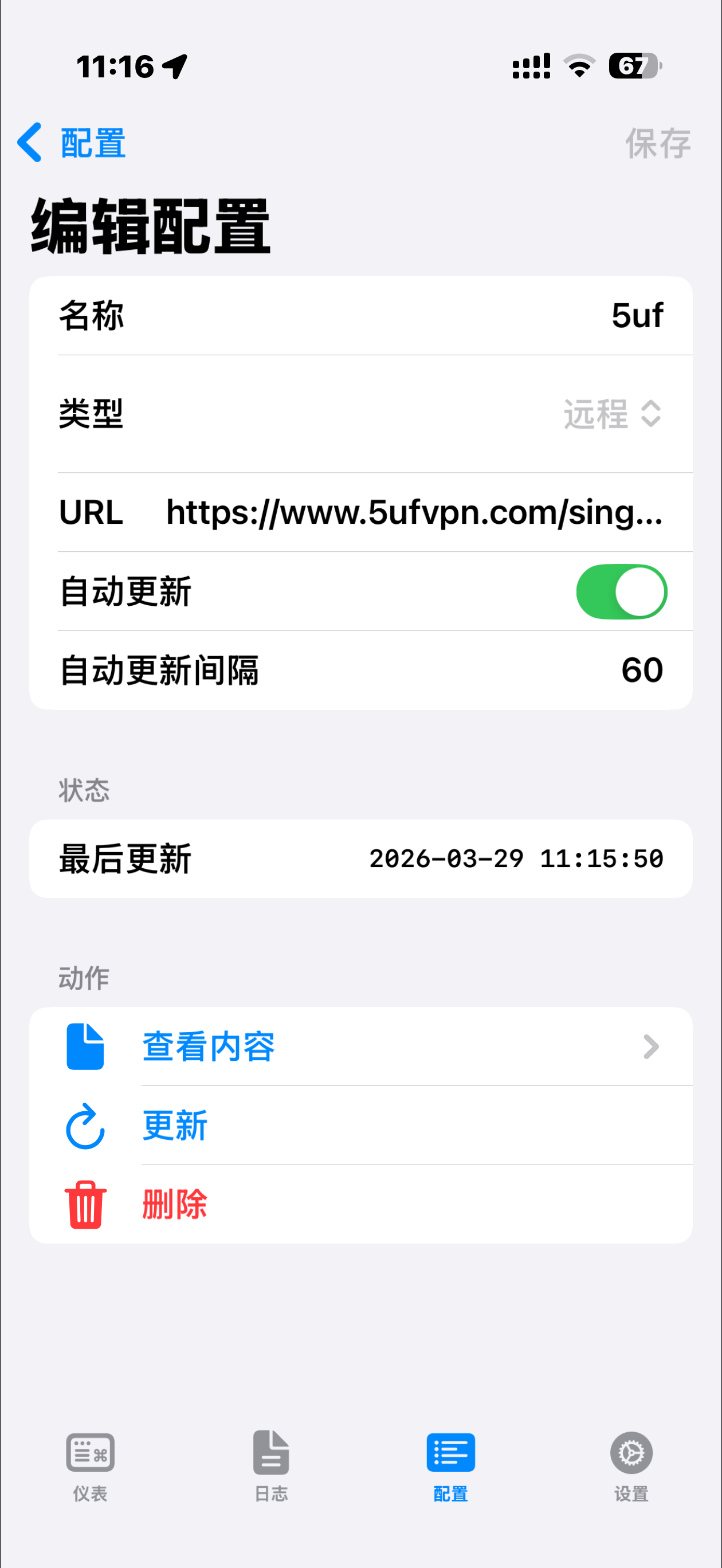
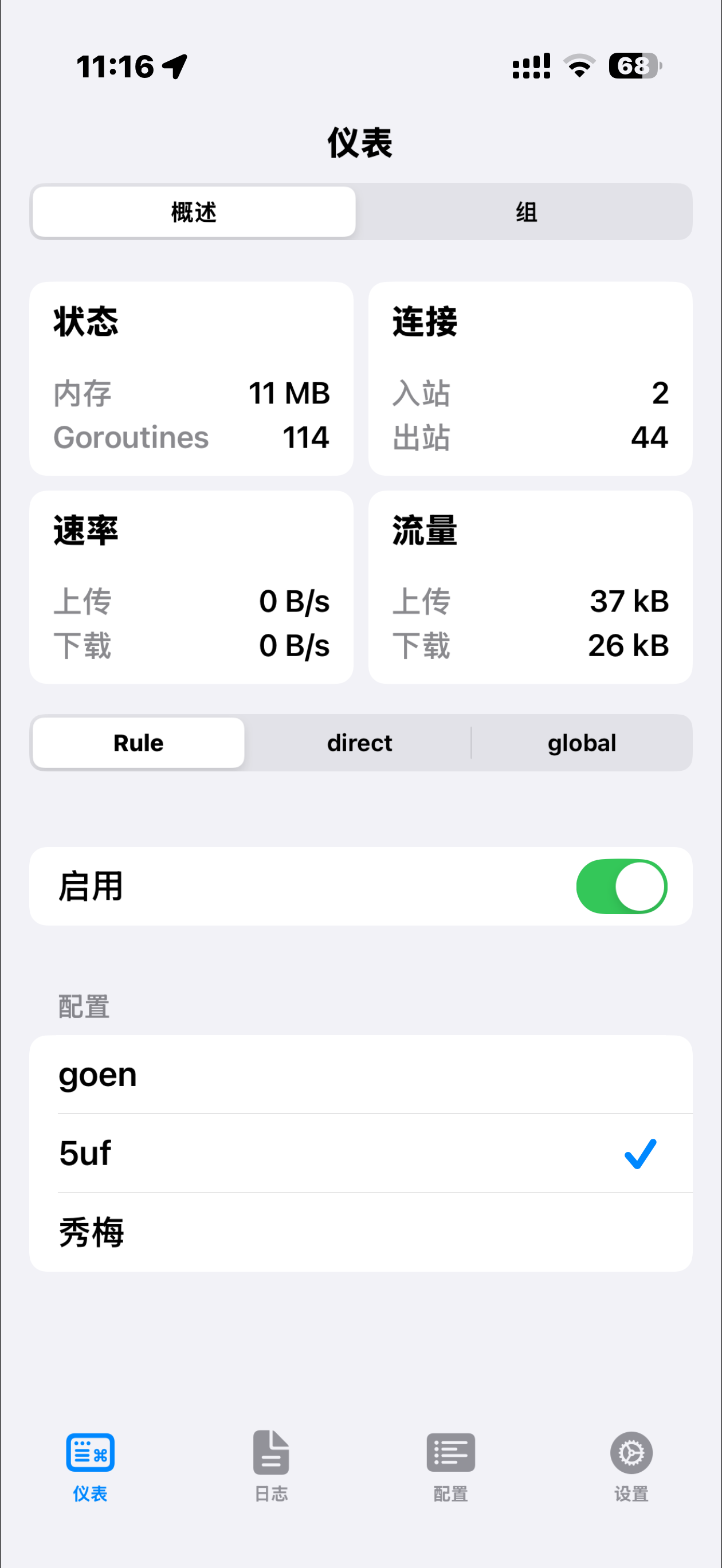
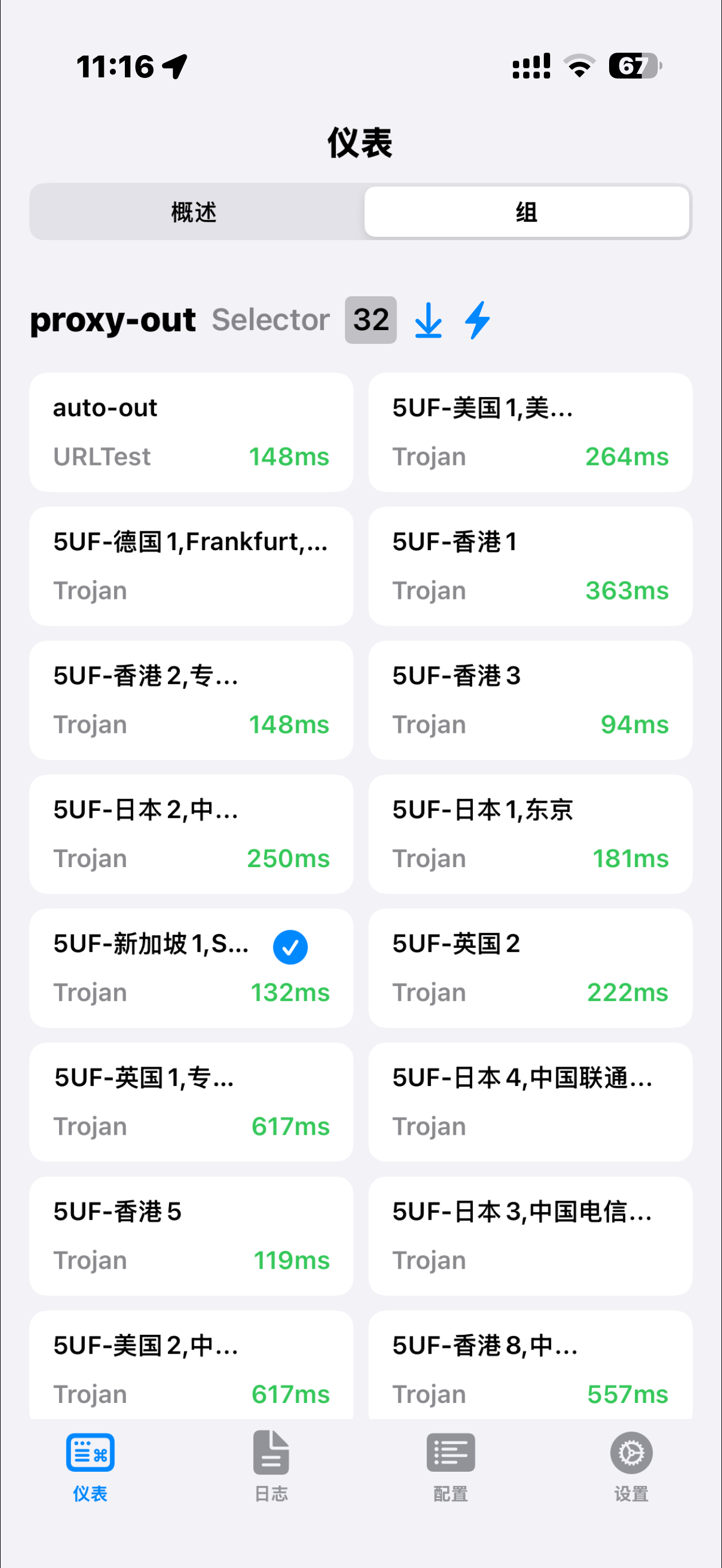
Sing-Box VT:
Does the 5UF iOS app use a lot of battery?
Some users notice that the 5UF app seems to use a large share of battery in the iPhone battery report.
In most cases, this is because once VPN is enabled, iOS counts a large part of network activity under the VPN app. It does not necessarily mean the 5UF app itself is consuming abnormal battery.
A simple way to understand it:
- After VPN is enabled, app traffic goes through the VPN tunnel.
- iOS often attributes part of that network activity to the VPN app in battery statistics.
- So a higher percentage does not automatically mean the app itself is using excessive battery.
Under normal usage, you usually do not need to do anything special.
If the battery drain still feels unusually high, try:
- Updating to the latest 5UF app
- Testing again on another network
- Closing unused background apps
- Restarting the phone and checking again
If the issue remains clearly abnormal, contact support and provide your device model, iOS version, and battery screenshot.